
Guide
Status pages
This page explains who can open a status page and which URL they use. It is for the WHMCS administrator. Visitors only see the page that matches the access level you set.
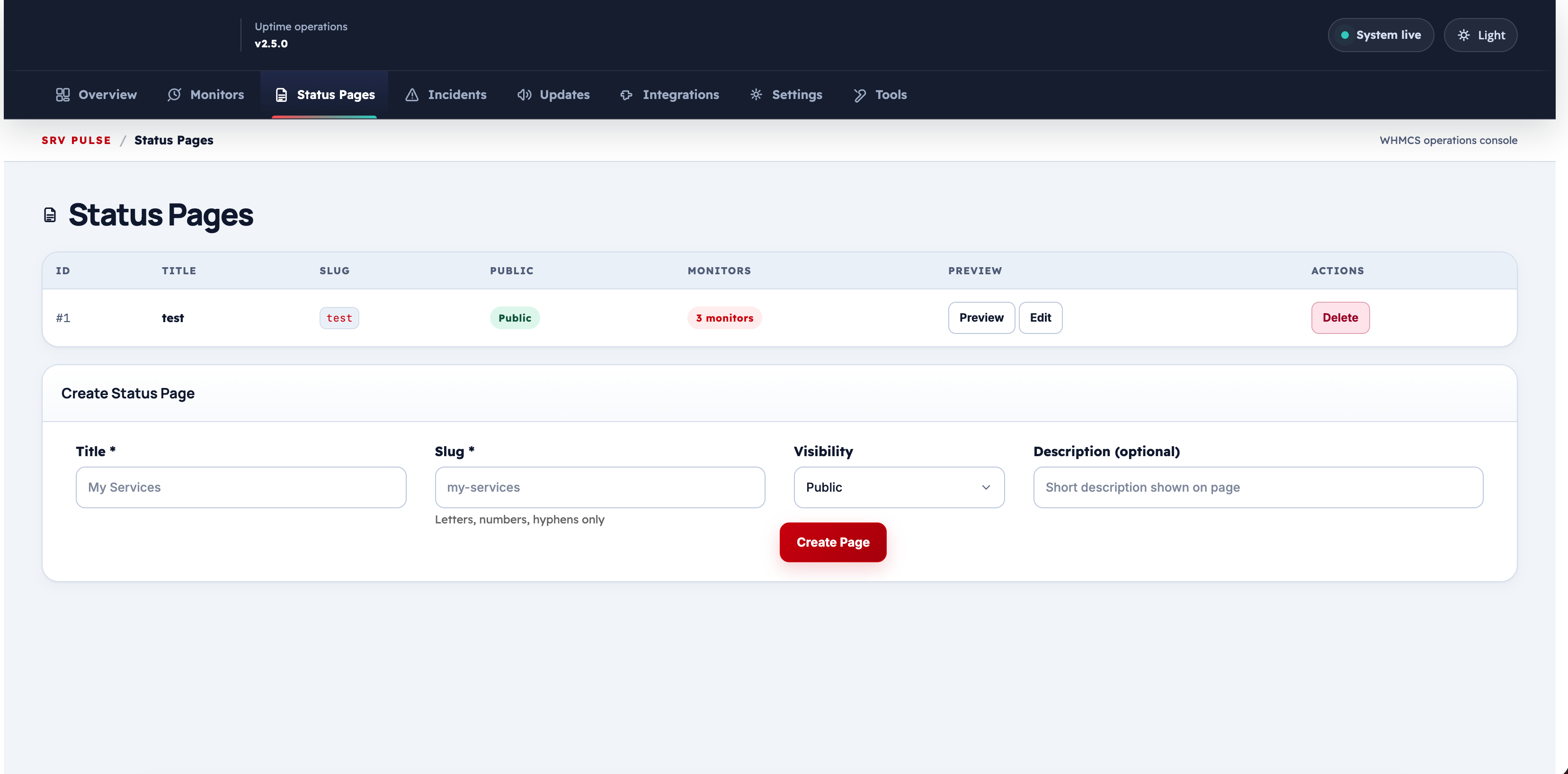
Creating a Status Page
Click Add Status Page to create a new page.
| Field | Description | Default |
|---|---|---|
| Title | Page name shown to visitors and in the browser title | — |
| Slug | URL-friendly identifier (e.g. my-services → /status/my-services) |
— |
| Description | Optional introductory text shown above the monitor list | — |
| Access Level | Who can view this page: Public, Clients only, or Private (password) |
Public |
| Password | If access level is private, visitors must enter this password | — |
| Custom Logo | Upload a logo image to replace the default branding on this page | — |
| Custom CSS | Add custom CSS rules applied only to this status page | — |
Access Levels
| Level | Who can see it |
|---|---|
| Public | Anyone with the link — no login required |
| Clients only | Logged-in WHMCS clients only |
| Private (password) | Anyone who enters the correct password |
Note
The password is stored as a secure hash. Visitors who enter the correct password are granted a session that persists until they close the browser.
Viewing Status Pages
Uptime Monitor 2 offers three ways to display status pages:
1. WHMCS Client Area
Default path for every page:
https://yourwhmcs.com/index.php?m=UptimeMonitor2
Or with pretty URLs enabled:
https://yourwhmcs.com/status/{slug}
2. Standalone Page (status.php)
When status.php is uploaded to the WHMCS root:
https://yourwhmcs.com/status.php?page={slug}
3. Custom Domain (Status Page Pro Extension)
The Status Page Pro extension allows mapping a completely separate domain to a status page. Visitors navigate to https://status.yourbrand.com and see only the status page — no WHMCS branding.
Monitor Groups on a Status Page
Monitors are organized into groups on each status page. Groups:
- Create visual sections with a group title
- Can be reordered via drag-and-drop in the Groups & Tags settings
- Each monitor is assigned to exactly one group (or displayed ungrouped)
Live Status Page (Visitor View)
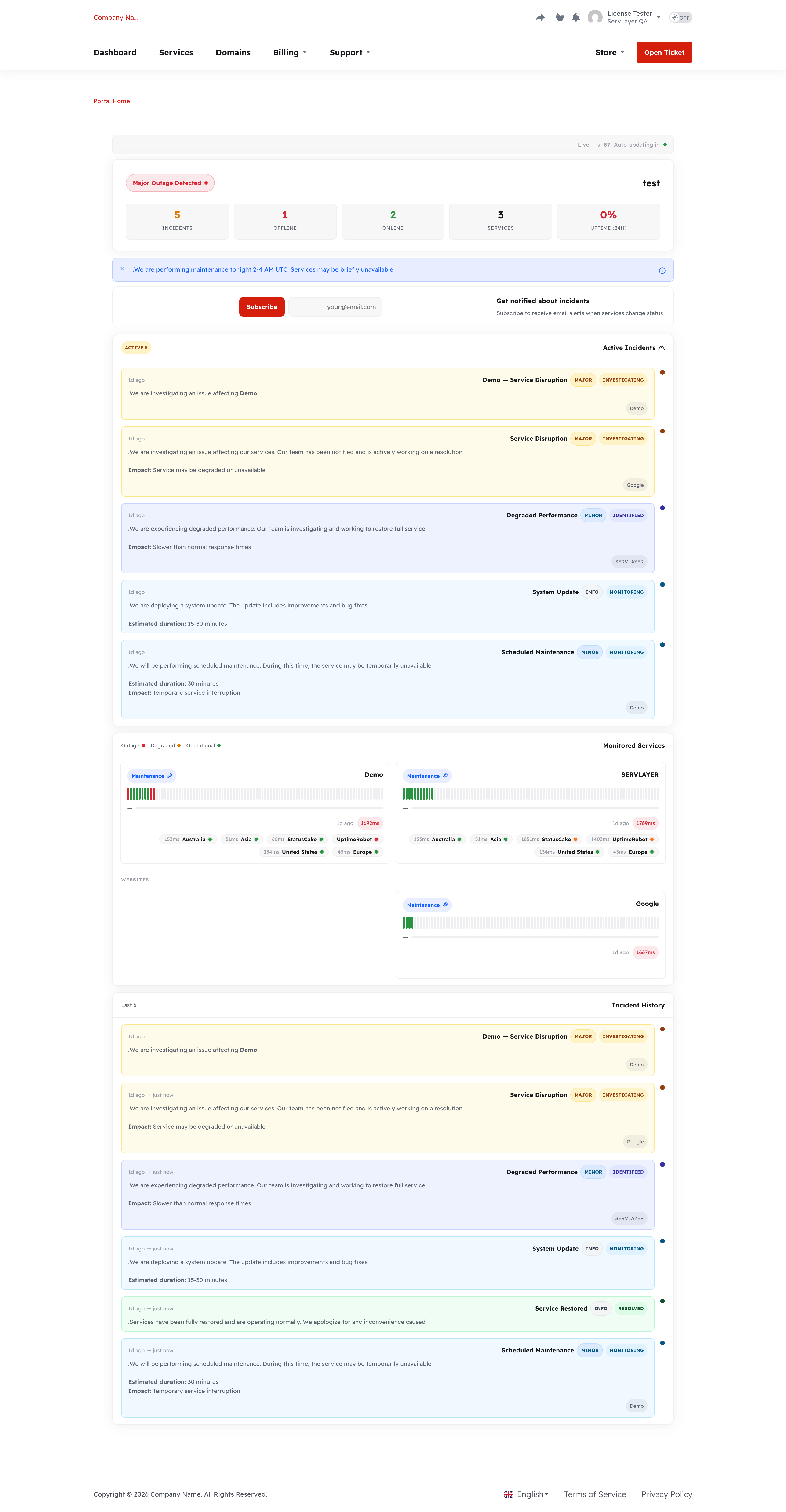
Visitors see:
- Overall status banner (All Systems Operational / Partial Degradation / Major Outage)
- List of monitors with status indicators and last response time
- Active and recent incidents
- Response time chart for each monitor (last 24 hours)
- Email subscription form (if enabled)
Subscriber Notifications
Visitors can subscribe to email notifications for a status page. On each status change, the system sends an email to all confirmed subscribers.
Subscription flow:
- Visitor enters their email in the subscription form
- A confirmation email is sent to verify the address
- After clicking the confirmation link, the subscription is active
- Subscribers receive alerts when an incident is created or a monitor goes down
Note
Rate limiting is applied to the subscription endpoint to prevent abuse.
Troubleshooting
| Problem | Fix |
|---|---|
| Status page returns 404 | Verify the slug is correct and pretty URLs are configured in WHMCS |
| Password page not showing | Clear browser cookies; the session may already be set |
| Subscription email not arriving | Check WHMCS mail settings and spam folder |
| Logo not displaying | Verify the file path is accessible and the image format is supported |