
Guide
Incidents and announcements
This page explains how you tell visitors about a disruption. It is for the WHMCS administrator. An incident is a timeline. An announcement is a bar at the top of a status page and does not change monitor state.
Incidents
Incidents document service disruptions with a timeline of updates. They appear prominently on status pages to inform visitors of ongoing and past issues.
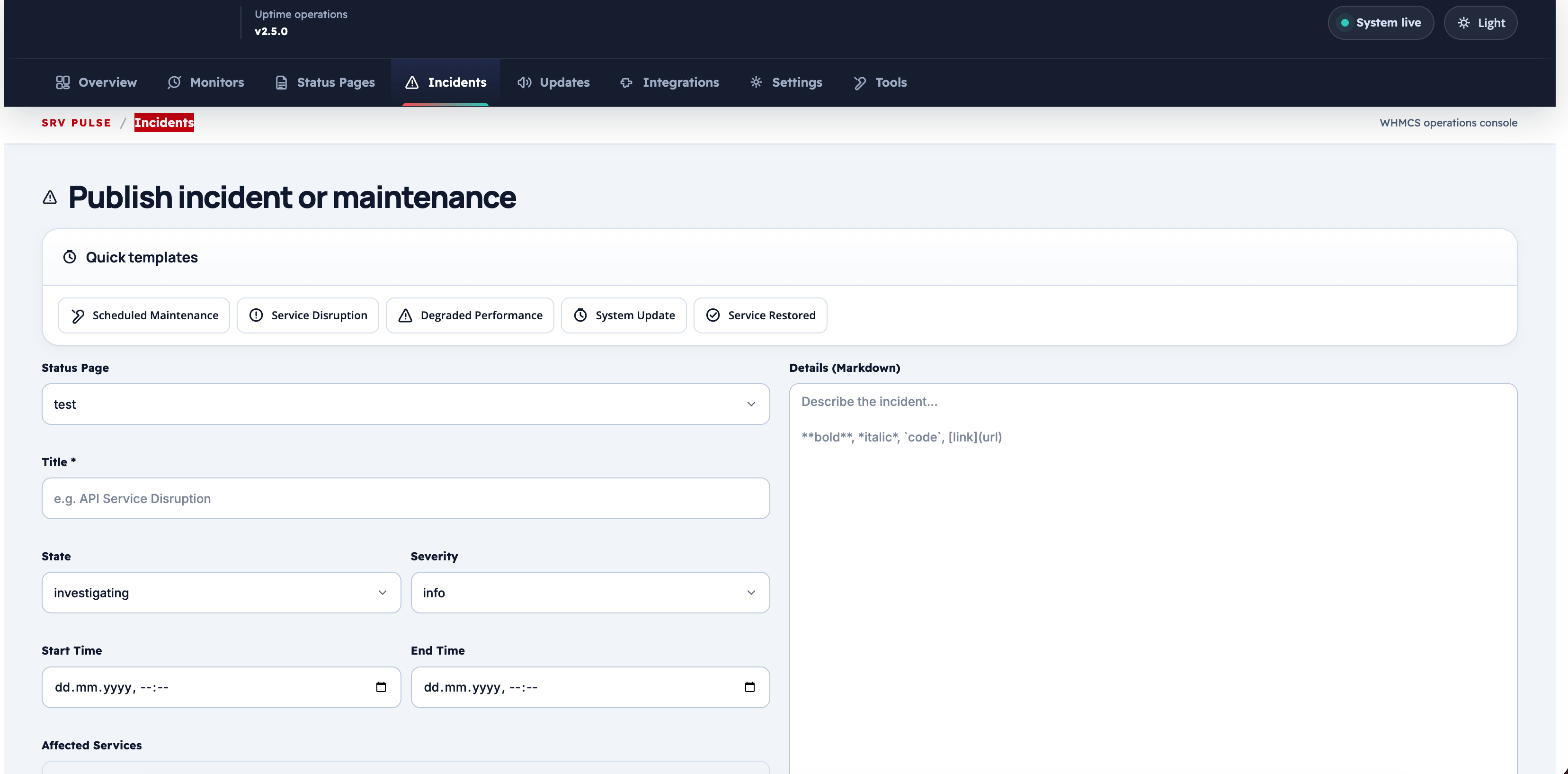
Creating an Incident
Click Publish Incident to open the incident form.
| Field | Description | Options | Default |
|---|---|---|---|
| Title | Short description of the issue | — | — |
| Severity | How serious the disruption is | Critical, Major, Minor, Info |
Minor |
| State | Current investigation progress | Investigating, Identified, Monitoring, Resolved |
Investigating |
| Message | Markdown-formatted first update describing what is known | — | — |
| Affected Services | Which monitors are impacted by this incident | (select from monitor list) | — |
| Started At | When the issue began; defaults to now | datetime | now |
Severity Levels
| Severity | Typical use |
|---|---|
| Critical | Complete service outage affecting all users |
| Major | Significant degradation affecting many users |
| Minor | Partial or intermittent issues affecting some users |
| Info | Planned maintenance or informational notice |
Incident States
| State | Meaning |
|---|---|
| Investigating | Issue detected; root cause not yet identified |
| Identified | Root cause found; fix being implemented |
| Monitoring | Fix deployed; observing for stability |
| Resolved | Service restored; incident closed |
Managing Incidents
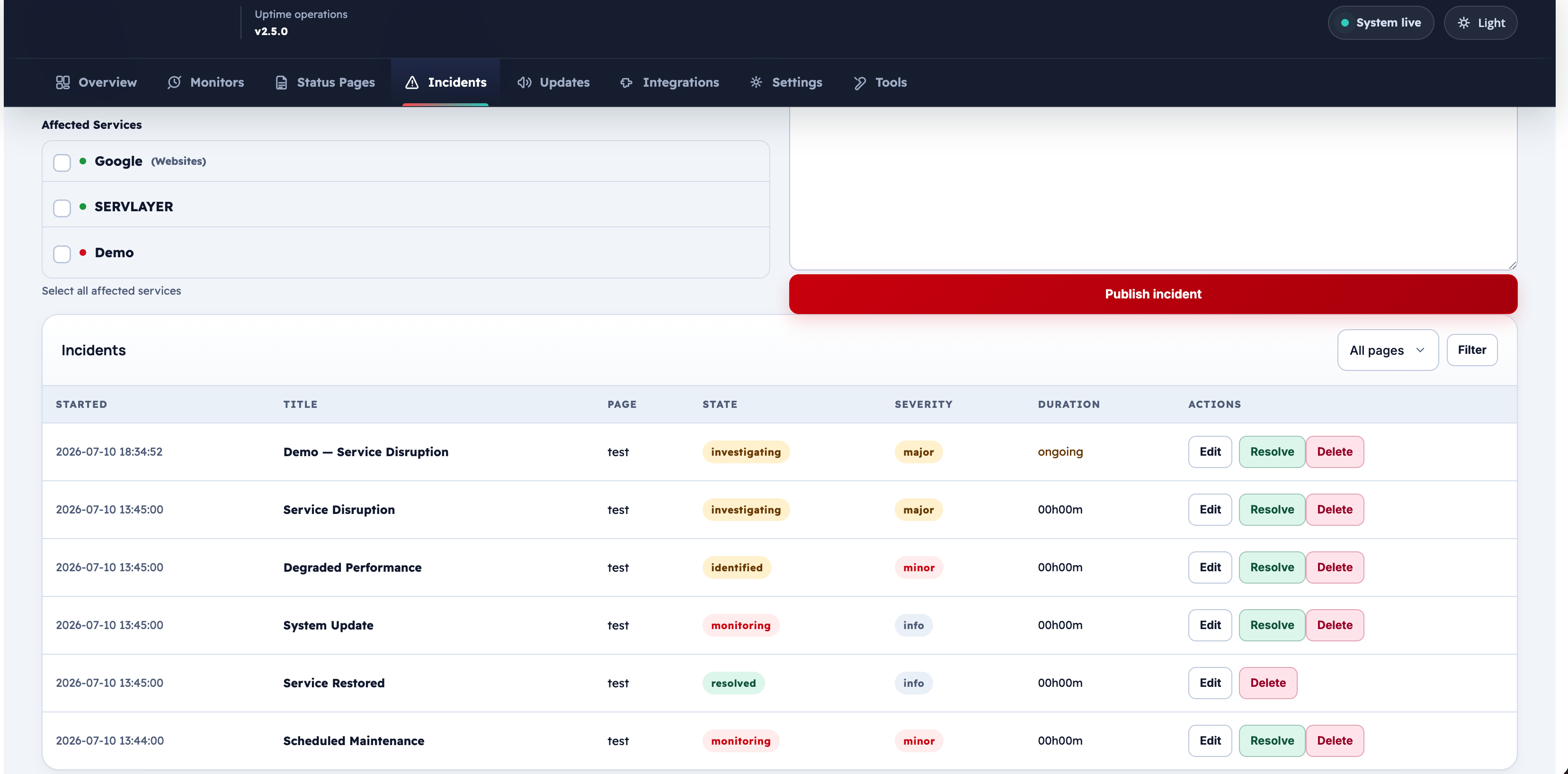
From the Incidents tab you can:
- View all open and resolved incidents
- Filter by status page, severity, and state
- Edit an incident to update its state, message, or affected services
- Add a timeline update post (see below)
- Mark an incident as resolved
Adding Timeline Updates
Click Add Update on any open incident to post a new message to its timeline. Each update requires:
| Field | Description |
|---|---|
| State | The updated state at the time of this post |
| Message | Markdown text describing new findings or actions taken |
Timeline updates appear in reverse chronological order on the status page, letting visitors follow the incident as it progresses.
Announcements (Updates Bar)
The announcements bar displays a sticky notice at the top of a status page. Use it for planned maintenance windows, upcoming changes, or general alerts.
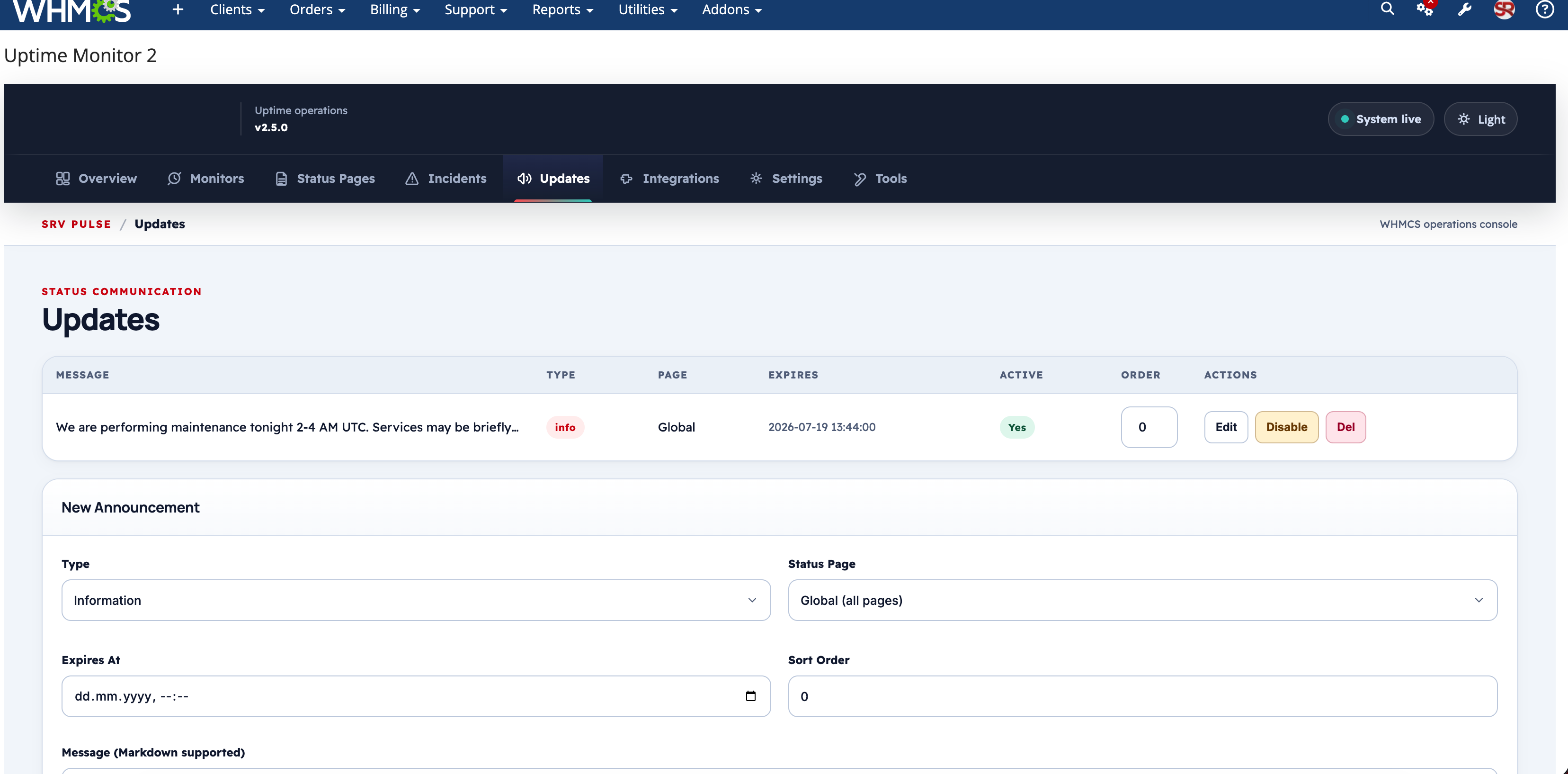
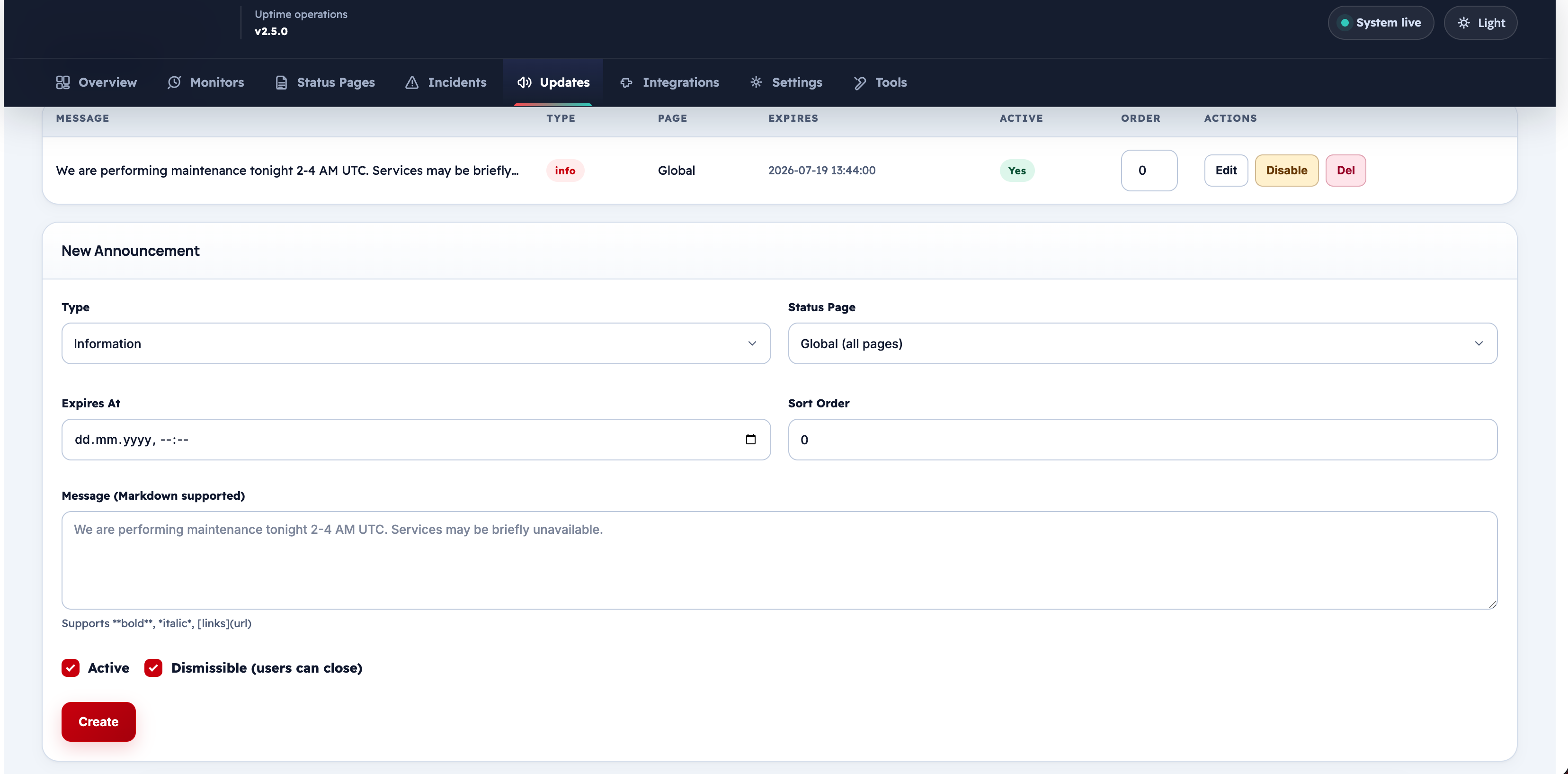
Creating an Announcement
| Field | Description | Options | Default |
|---|---|---|---|
| Message | Markdown text for the announcement | — | — |
| Type | Visual style of the bar | Info (blue), Warning (amber), Danger (red), Success (green) |
Info |
| Status Page | Which page to show this on; leave blank for all pages | — | All pages |
| Dismissible | Whether visitors can close the bar | Yes / No | Yes |
| Active | Show or hide without deleting | Yes / No | Yes |
| Expires At | Optional datetime after which the announcement is automatically hidden | datetime | — |
| Sort Order | Controls the stacking order when multiple announcements are active | number | 0 |
Announcement Types
| Type | When to use |
|---|---|
| Info | Routine notices, upcoming maintenance |
| Warning | Degraded performance or potential impact |
| Danger | Critical issue or emergency notice |
| Success | Service restored, resolved notification |
Tip
Set an Expires At date for planned maintenance announcements so they disappear automatically when the maintenance window ends.
Color Themes
Incident severity and state colors are set on Settings. Light and dark sets are separate.