
Settings
Managing AI Providers
This page explains how to connect the AI provider accounts that power the assistant's replies. It is for administrators setting up or changing which AI service the chatbot uses.
Navigate to Addons → AI Copilot Suite → AI Providers.
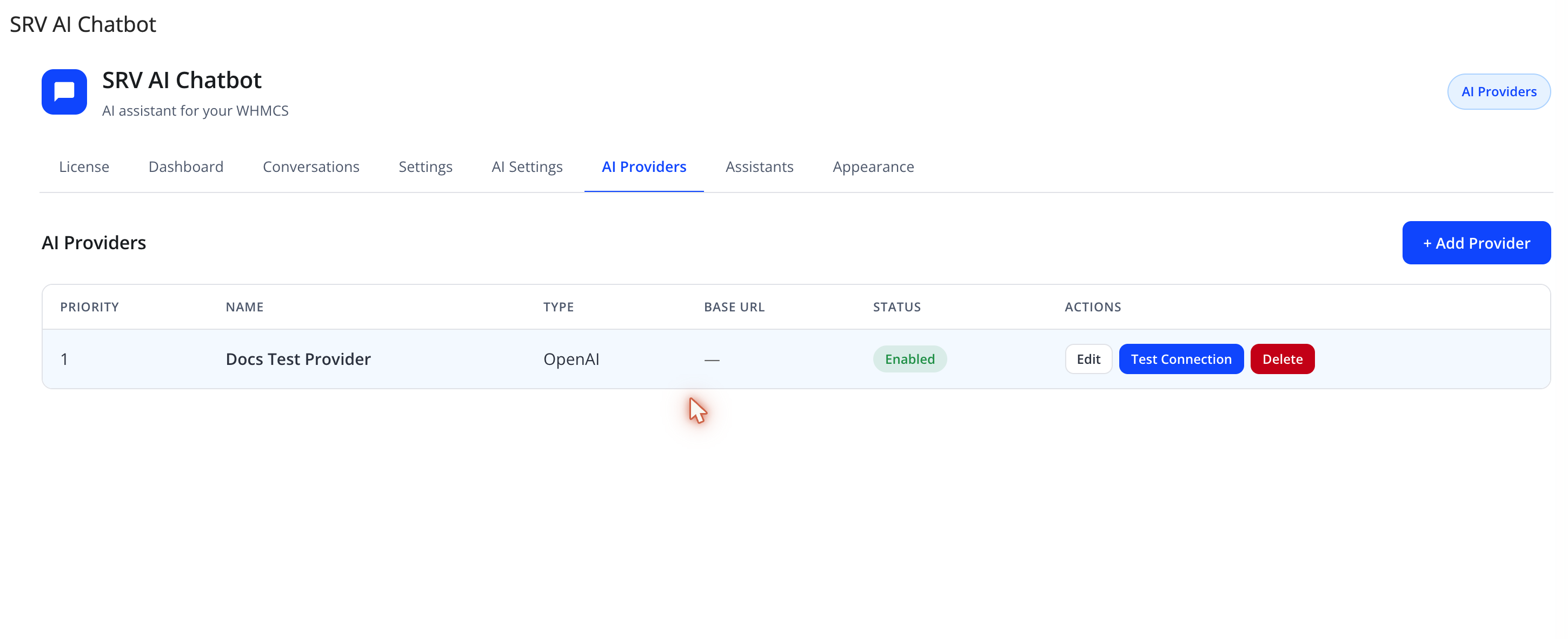
Provider list
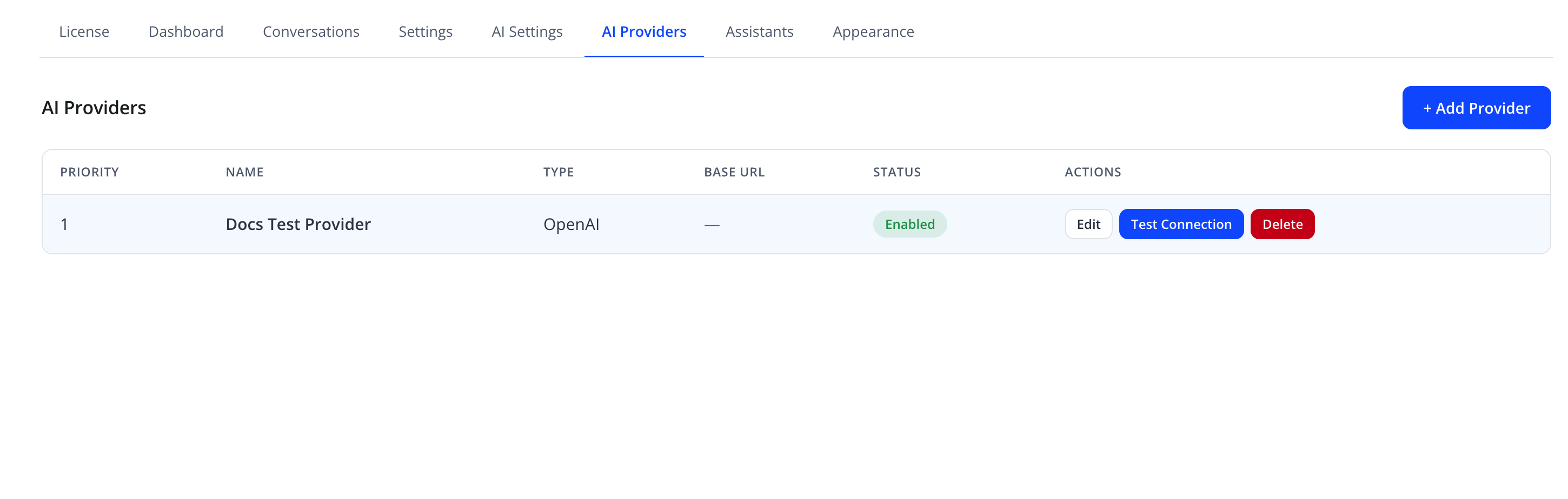
Once at least one provider is added, the list view shows every configured provider:
| Column | Meaning |
|---|---|
| PRIORITY | Routing order — lower numbers are tried first |
| NAME | Friendly label you assigned |
| TYPE | OpenAI, Anthropic Claude, Google Gemini, or OpenAI-Compatible |
| BASE URL | Endpoint used for OpenAI-Compatible providers (shown as — otherwise) |
| STATUS | Enabled or Disabled |
| ACTIONS | Edit, Test Connection, Delete |
Adding or editing a provider
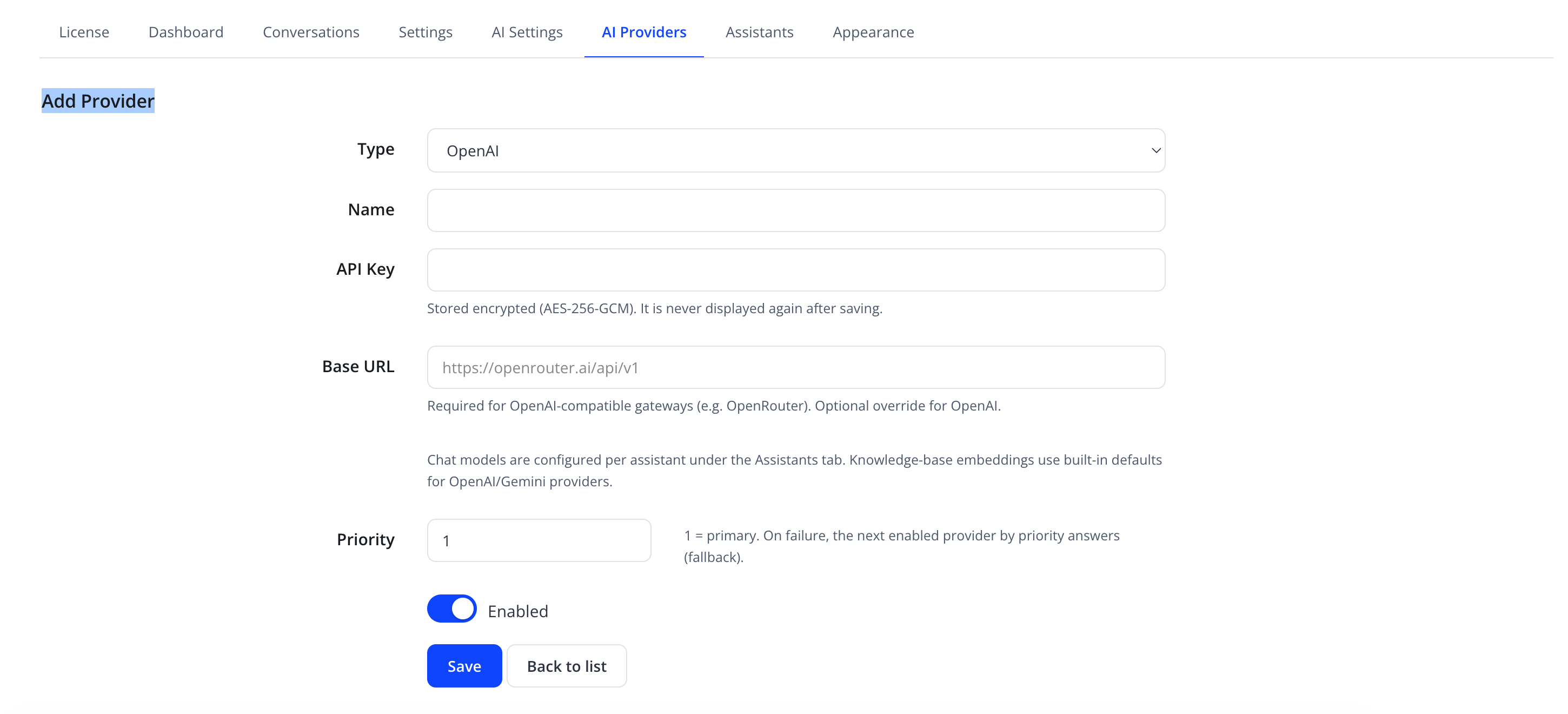
Click + Add Provider, or Edit on an existing row.
| Friendly name | System name | Type | Default |
|---|---|---|---|
| Type | type |
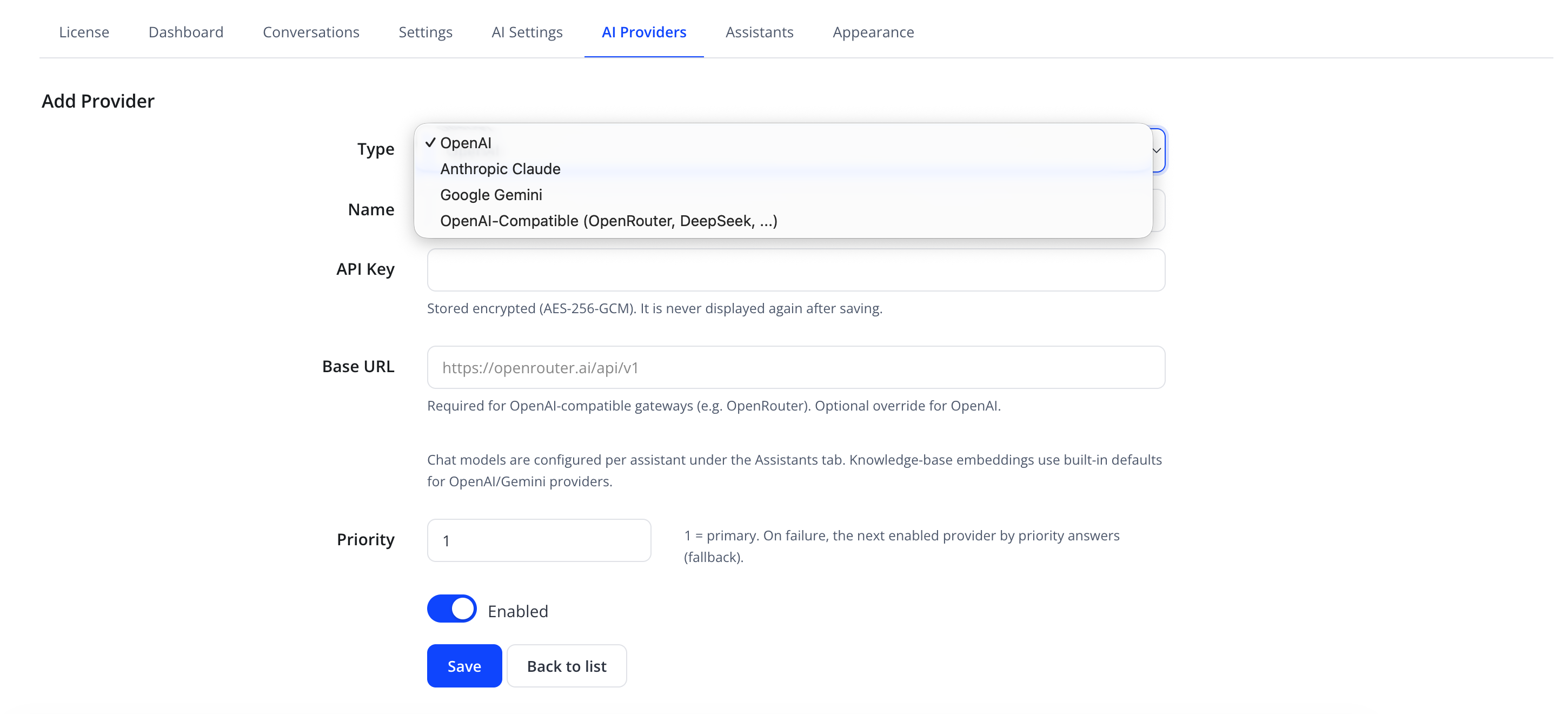
select — OpenAI, Anthropic Claude, Google Gemini, OpenAI-Compatible (OpenRouter, DeepSeek, ...) | OpenAI |
| Name | name |
text | — |
| API Key | api_key |
password | — |
| Base URL | base_url |
text | — (required for OpenAI-Compatible; optional override for OpenAI) |
| Priority | priority |
number | 1 |
| Enabled | status |
toggle | On |
Note
The API Key field is stored encrypted (AES-256-GCM) and is never displayed again after saving — not even to an administrator re-opening the form. When editing an existing provider, leave the field empty to keep the current key; type a new value only if you intend to replace it.
Tip
Use Base URL for any OpenAI-compatible gateway (e.g. OpenRouter, DeepSeek, or a self-hosted proxy) — set Type to OpenAI-Compatible and point Base URL at that gateway's API root (e.g. https://openrouter.ai/api/v1).
Note
Chat models are configured per assistant under the Assistants tab, not here — see Adding an Assistant. Knowledge-base embeddings use built-in defaults for OpenAI/Gemini providers.
Multi-provider failover
Set Priority on each provider to control routing order — 1 is tried first. If the assistant's request to the primary provider fails — due to an outage, quota limit, or network error — the module automatically retries with the next enabled provider by priority.
Testing a connection
Click Test Connection on a provider row to verify the API key and Base URL are valid before relying on that provider in production. A failed test typically indicates an invalid key, an incorrect Base URL, or a network/firewall restriction on outbound HTTPS.
Actions
| Action | Effect |
|---|---|
| + Add Provider | Opens the add form |
| Save | Stores the provider |
| Test Connection | Sends a lightweight request to confirm the provider is reachable and the credentials work |
| Delete | Removes the provider (confirmation required) |
| Back to list | Discards the form and returns to the provider list |
Troubleshooting
| Problem | Fix |
|---|---|
| Test Connection fails | Re-check the API key, Base URL, and outbound HTTPS access from the WHMCS server |
| Assistant never uses a secondary provider | Confirm the secondary provider is Enabled and has a higher priority number than the primary |
| All conversations fail | Confirm at least one provider is Enabled and its Priority is set; check the Dashboard for a "No enabled AI provider" warning (see Dashboard) |
Next step
Continue to Behavior Settings to control how the assistant uses these providers (scope guard, models & tokens, indexing, rate limits, engagement, access control, and RAG retrieval).