
Guide
Dashboard Overview
This page explains the SRV AI Chatbot dashboard — the first screen an administrator sees after the license and provider setup are complete. It is for administrators who need a quick health and usage overview.
Navigate to Addons → AI Copilot Suite → Dashboard.
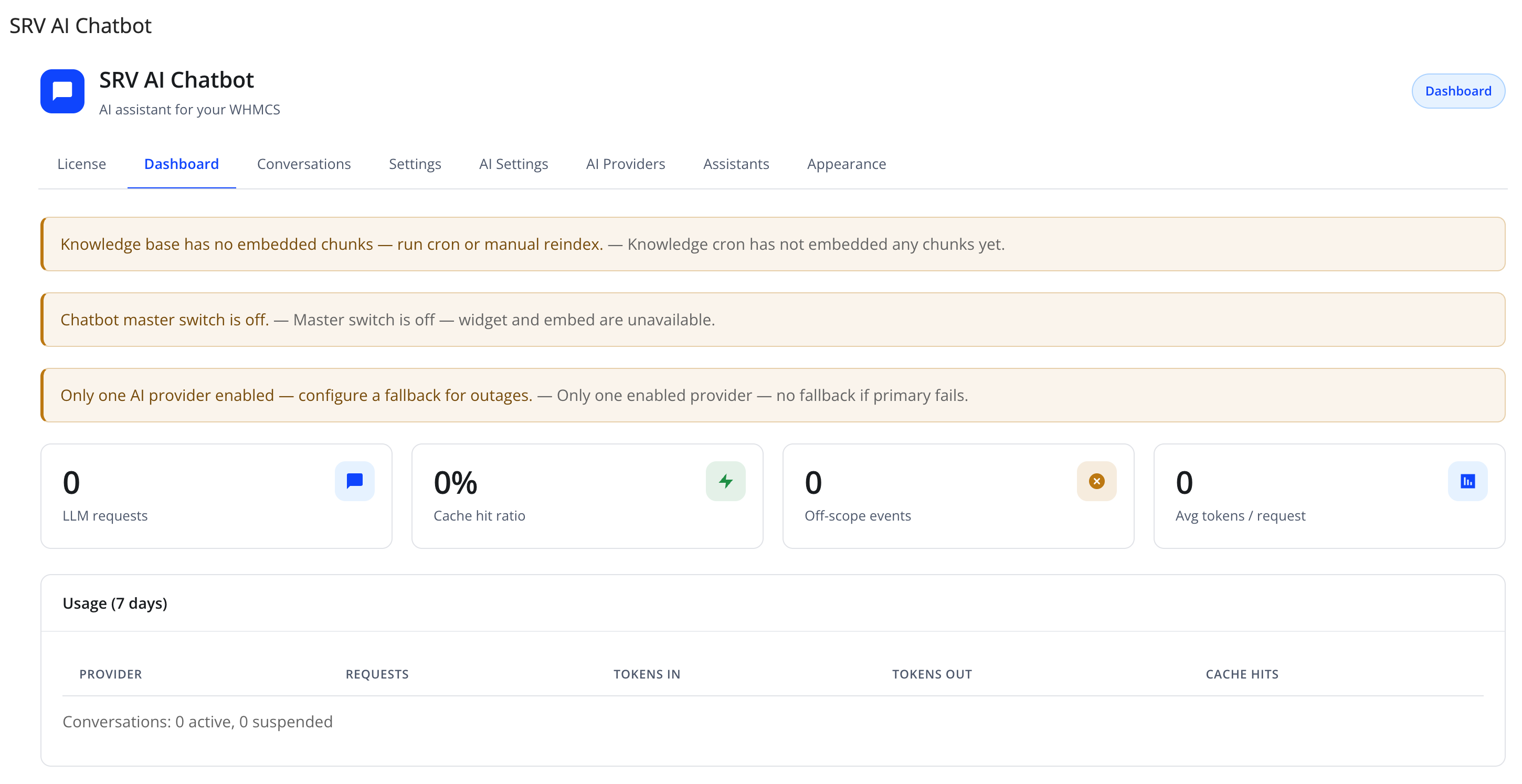
Health warning banners
The top of the dashboard shows contextual warning banners only when something needs attention. Common examples:
| Banner | Meaning |
|---|---|
| "No enabled AI provider — chat cannot run." | No AI provider is both added and enabled |
| "No embedding provider (OpenAI/Gemini) — RAG and scope guard are degraded." | Enable an OpenAI or Gemini provider so knowledge retrieval and scope classification work fully |
| "Knowledge base has no embedded chunks — run cron or manual reindex." | The Knowledge index has not finished embedding any content yet |
| "Chatbot master switch is off." | Enable chatbot is off in General Settings — the widget and embed are unavailable |
| "Only one AI provider enabled — configure a fallback for outages." | Add and enable a second AI provider so the assistant can fail over if the primary is unavailable |
These banners disappear automatically once the underlying condition is resolved.
Usage stat tiles
Four at-a-glance tiles:
| Tile | Meaning |
|---|---|
| LLM requests | Total number of AI provider calls made |
| Cache hit ratio | Percentage of chat responses served from the response cache instead of a fresh AI call (see Behavior Settings for the cache TTL setting) |
| Off-scope events | Number of times the assistant declined to answer because a question fell outside its configured scope |
| Avg tokens / request | Average token consumption per AI request, useful for cost estimation |
Usage table (7 days)
A per-provider breakdown table shows:
| Column | Meaning |
|---|---|
| PROVIDER | The AI provider the row refers to |
| REQUESTS | Number of calls made to that provider |
| TOKENS IN | Total input (prompt) tokens sent |
| TOKENS OUT | Total output (completion) tokens received |
| CACHE HITS | Number of responses served from cache for that provider |
Below the table, a line such as "Conversations: 0 active, 0 suspended" shows the current chat load at a glance.
Daily token cap

| Friendly name | System name | Type | Default |
|---|---|---|---|
| Max tokens per day (0 = unlimited) | — | number | 0 |
Set a non-zero value to cap total daily token spend across all providers. The card shows today's usage against the cap (e.g. "Today: 0 (0%)").
Note
At 80% of the cap, an admin activity log entry is written. At 100%, the assistant stops using AI and offers the client a support ticket instead.
Click Save to apply a new cap.
Tip
Use the daily token cap as a safety net against unexpected AI provider costs, especially while first tuning your knowledge base and scope settings.
Troubleshooting
| Problem | Fix |
|---|---|
| Usage numbers show zero after setup | Confirm at least one provider is enabled and a test conversation has been sent |
| Cache hit ratio stays at 0% | Increase Response cache TTL (hours) under Behavior Settings |
| A warning banner won't go away | Re-check the specific condition named in the banner text — each one points at the setting that needs attention |