
Guide
Policy Manager
This page defines where a new guest is placed. It is written for the operator who connects a cluster, IP pools, and default storage before building a VM Plan.
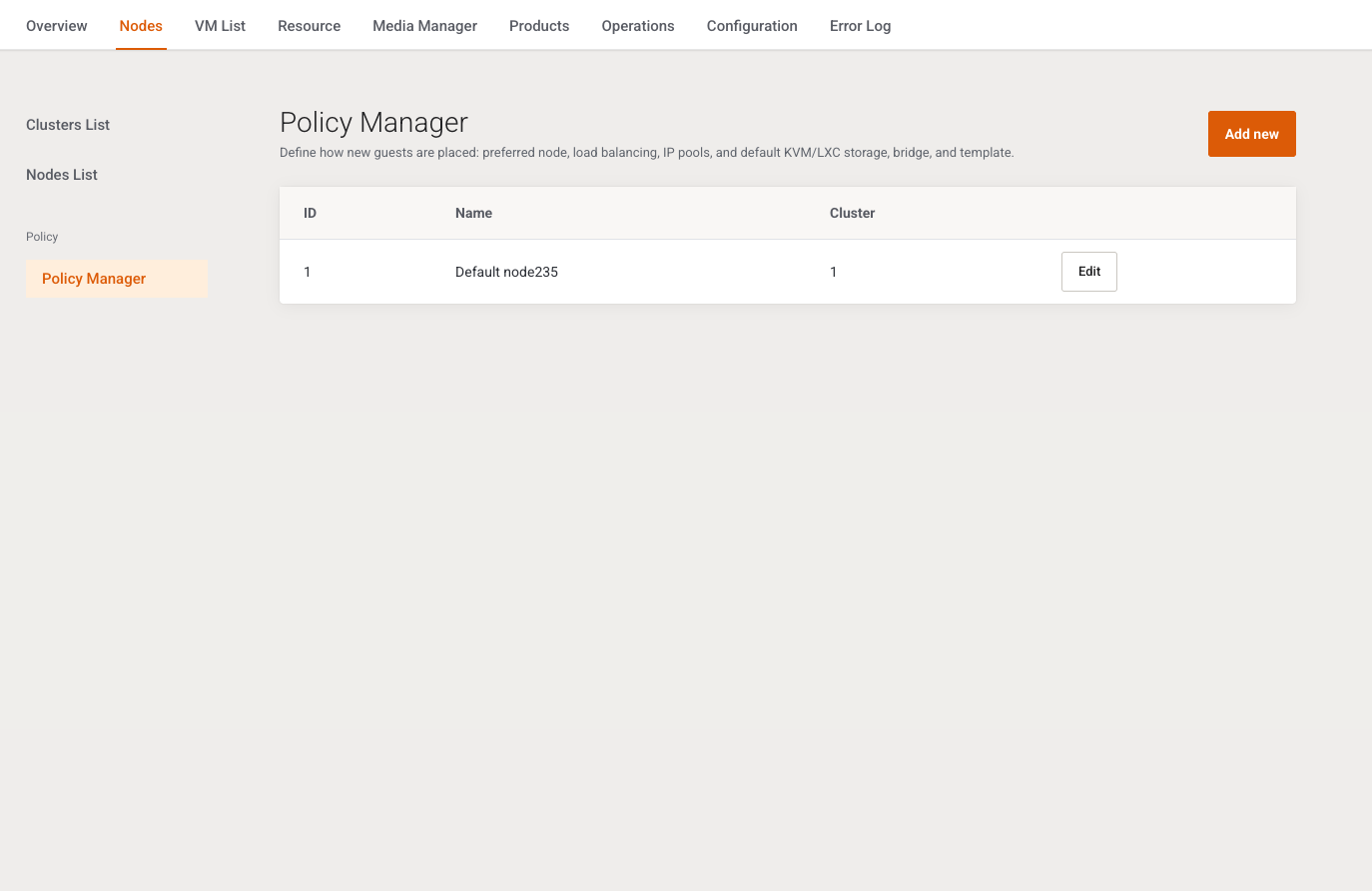
Menu: Addons → Proxmox Suite → Nodes → Policy → Policy Manager
Purpose
A distribution policy answers four questions at provision time: which cluster, which node, which IP pools, and which default storage, bridge, and template for KVM and for LXC.
Intro: Define how new guests are placed: preferred node, load balancing, IP pools, and default KVM/LXC storage, bridge, and template.
A VM Plan Policy field points here. At create, a package policy overrides the WHMCS product’s Distribution Policy when the package has one.
List
Add new opens the modal. Columns: ID, Name, Cluster (the numeric cluster id). Empty: No records yet.
Edit opens the modal. Changing Cluster reloads nodes, storages, bridges, and templates from the farm catalog.
Note
The server can delete a policy, but this screen has no Delete button. Deactivate a policy you no longer want offered.
Add / Edit
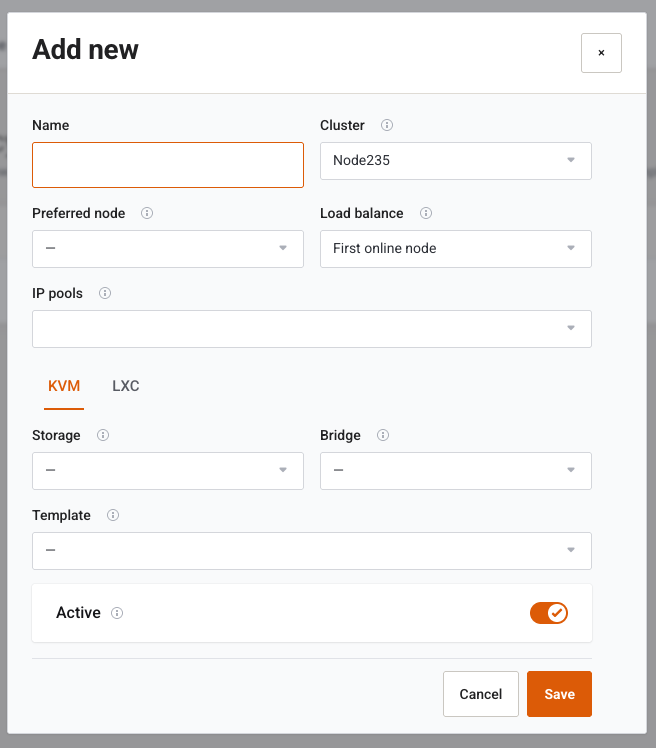
Cancel closes the modal. Save posts the form. Success: Changes saved successfully. Empty name or cluster: Name and cluster are required.
| Field | Type | What it does |
|---|---|---|
| Name | Text, required | Label in package and product dropdowns. |
| Cluster | Select, required | Cluster this policy uses. Catalog options load from that cluster. |
| Preferred node | Select | Optional. Empty means the load-balance rule chooses the node. |
| Load balance | Select | Used when no preferred node is set, or the preferred node is unavailable. |
| IP pools | Multi-select | Pools used when assigning addresses. Hold Ctrl or Cmd for more than one. Empty is allowed. The first selected id is also stored as the legacy single pool. |
| Active | Switch, default on | Inactive policies are hidden from selection lists and kept in the database. |
Load balance options:
| Label | Stored value |
|---|---|
| First online node | empty |
| Lowest free RAM | lowest_ram |
| Highest free RAM | highest_ram |
| Lowest free disk | lowest_disk |
| Highest free disk | highest_disk |
KVM and LXC tabs
Each tab has its own defaults. An em dash stores nothing.
| Field | KVM tip | LXC tip |
|---|---|---|
| Storage | Default KVM disk storage | Default LXC disk storage |
| Bridge | Default KVM network bridge | Default LXC network bridge |
| Template | Optional default KVM template | Optional default LXC template |
Template lists include Active templates for that guest type on the selected cluster.
Note
Dropdowns stay at an em dash until Farm catalog cache has run for that cluster. A saved value still appears even when it is missing from the latest cache.
Example
- Add new. Name
kvm-a. - Cluster = the cluster you health-checked.
- Load balance = Lowest free RAM.
- IP pools = the public IPv4 pool.
- On KVM, set Storage and Bridge. Leave Template empty if the VM Plan chooses media itself.
- Save, then select this policy on the VM Plan and on the WHMCS product.
Next step
Fill IPv4 Addresses if the pool list was empty, then build a VM Plan.