
Guide
Cloud API Token
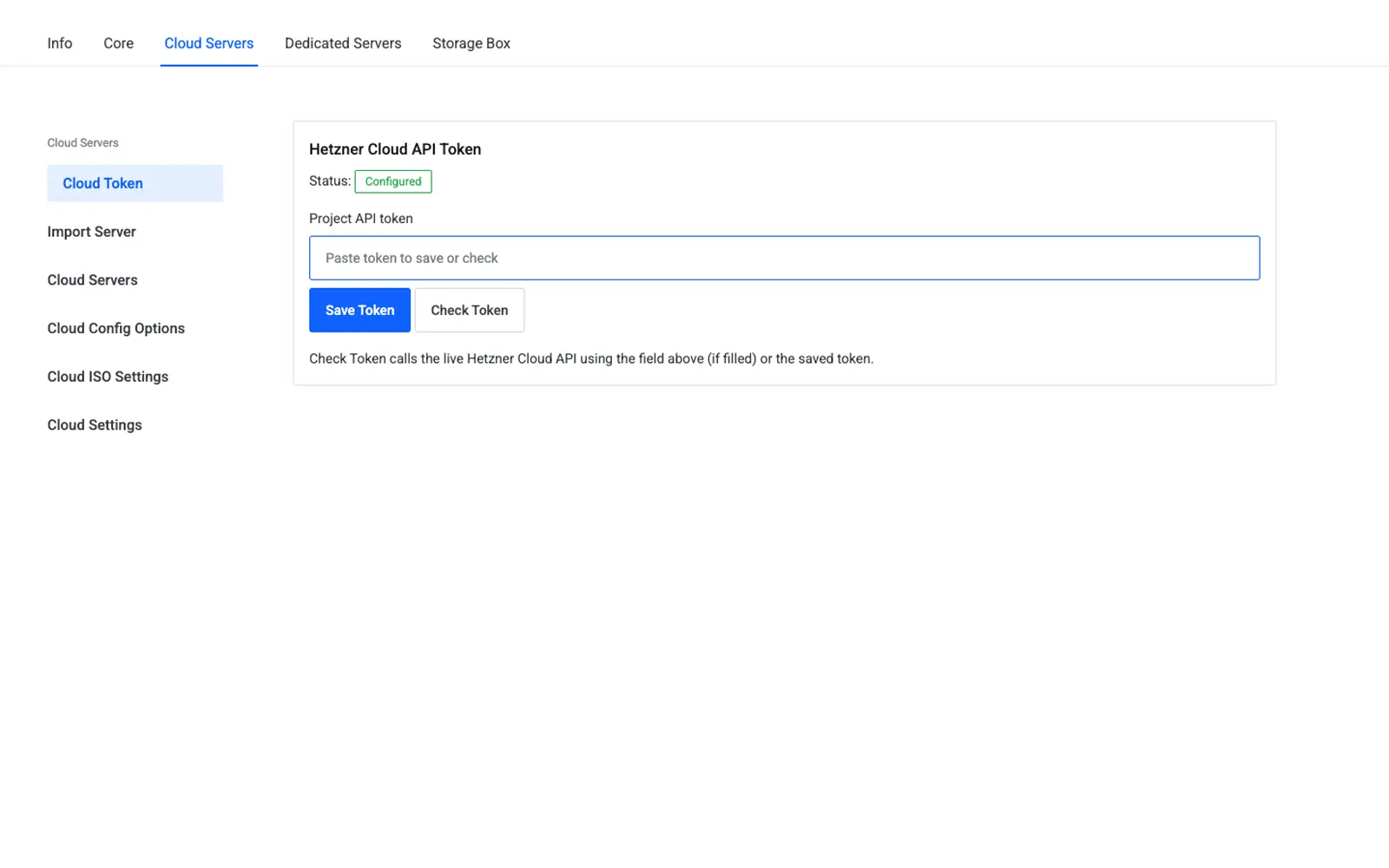
This page explains how to generate a Hetzner Cloud API token in the Hetzner Cloud Console and how to save it in WHMCS so the addon can manage servers on your behalf. It is written for WHMCS administrators configuring Hetzner Cloud for the first time.
Menu: Addons → Hetzner Data Center Core → Cloud → API Token
Purpose
The Cloud API Token page stores the Hetzner Cloud project API token used by every Cloud admin page — Import Server, Cloud Servers, Configurable Options, and ISO Settings — and by the srv_hetzner_cloud server module for provisioning and lifecycle actions.
Step 1 — Generate a token in Hetzner Cloud Console
- Log in to the Hetzner Cloud Console.
- Open the project you want to connect to WHMCS.
- In the left menu, click Security.
- Open the API tokens tab.
- Click Generate API token.
- Enter a description (for example, "WHMCS production").
- Choose the token permission:
- Read — allows
GETrequests only (monitoring/inventory use only). - Read & Write — allows
GET,POST,PUT, andDELETErequests.
- Read — allows
- Click Generate API token.
Warning
The token is shown only once. Copy it and store it securely immediately — Hetzner Cloud Console cannot display it again after you close the dialog. If you lose it, generate a new token and revoke the old one.
Tip
The addon needs a Read & Write token. It creates, resizes, rebuilds, and deletes Hetzner resources on behalf of WHMCS orders, so a Read-only token will cause order provisioning and most client-area actions to fail.
Step 2 — Save the token in WHMCS
- In WHMCS, go to Addons → Hetzner Data Center Core → Cloud → API Token.
- Paste the token into the Project API token field.
- Click Check Token to verify it against the Hetzner Cloud API — you should see a message confirming the token was accepted, along with the number of servers found in the project.
- Click Save Token.
The Status indicator on this page shows Configured (green) once a token has been saved, or Not configured (red) otherwise.
Fields and actions
| Friendly name | System name | Type | Default |
|---|---|---|---|
| Project API token | cloud.api_token |
password (encrypted) | — |
| Status indicator | — | display only | Not configured |
| Element | Description |
|---|---|
| Project API token | Password field — paste a token to save or check it; never pre-filled after save |
| Check Token | Calls the Hetzner Cloud API (GET /servers) with the field value or the saved token; shows the server count or an error |
| Save Token | Saves the token, encrypted, to the addon settings (cloud.api_token) |
Security notes
Caution
Never paste API tokens into support tickets, screenshots, or documentation. Redact tokens before sharing screenshots.
- The token is encrypted at rest in the addon's settings storage and is never stored in plaintext.
- The token is not echoed back into the page HTML after it is saved.
- Use a token scoped to a single Hetzner Cloud project — one WHMCS server record maps to one project.
Troubleshooting
| Problem | Fix |
|---|---|
| All Cloud pages show "configure token first" | Save a valid token on this page |
401 Unauthorized on Check Token |
The token was revoked or mistyped; generate a new Read & Write token in Hetzner Cloud Console |
| Check Token succeeds but Import Server list is empty | Verify the project actually has server types and locations available for your account |
References
- Generating an API token — Hetzner Cloud API docs
- Using the API (Bearer authentication) — Hetzner Cloud API docs