
Guide
Cloud Servers
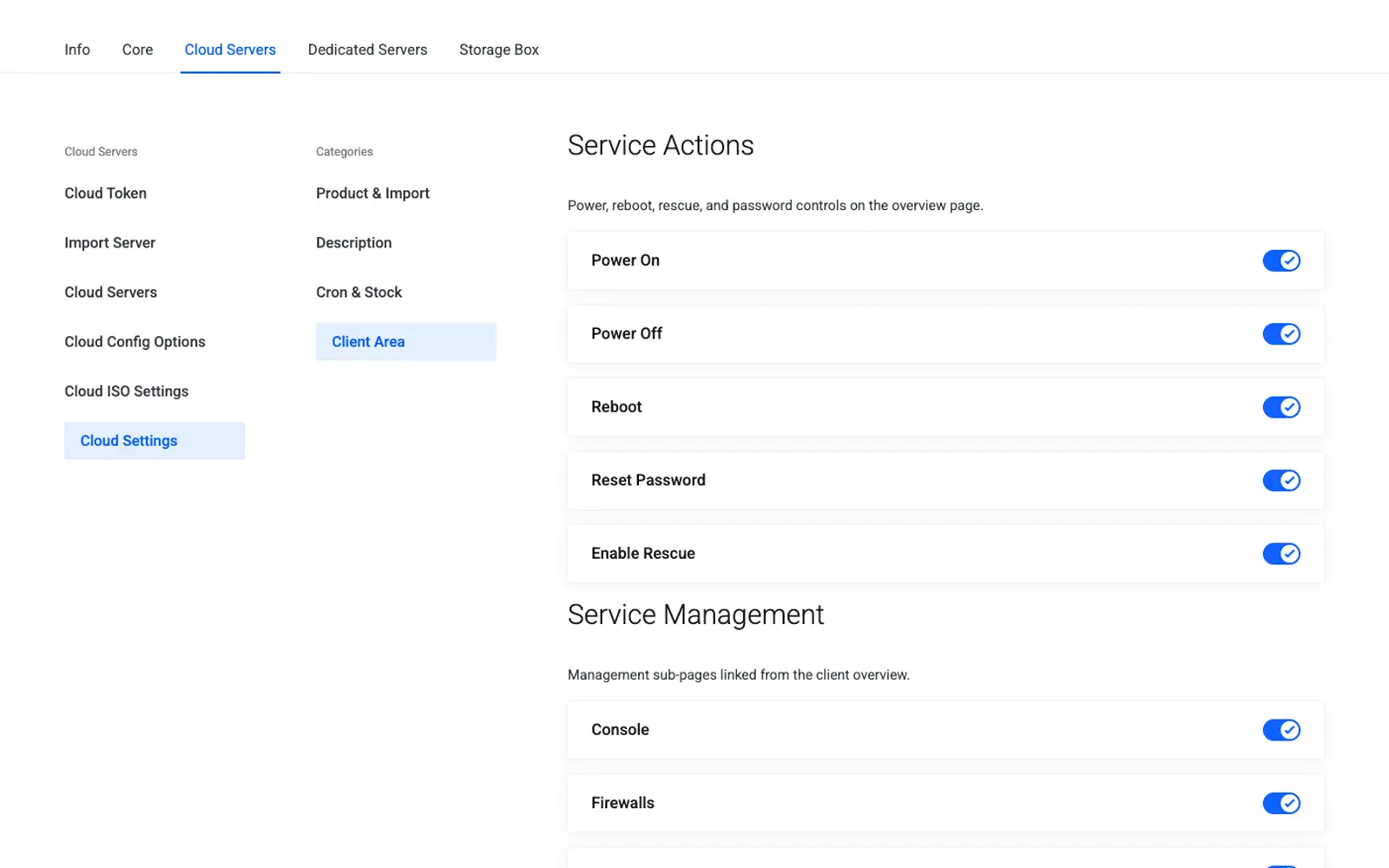
This page covers the live Cloud Servers inventory page, how to import or transfer existing servers into WHMCS, and the service actions available on a linked server. It is written for WHMCS administrators managing an active Hetzner Cloud project.
Menu: Addons → Hetzner Data Center Core → Cloud → Cloud Servers
Purpose
Cloud Servers shows every server in the connected Hetzner Cloud project and links them to WHMCS services. Use this page for inventory audits, importing orphan servers, or transferring a service to a different client.
Table columns
| Column | Description |
|---|---|
| ID | Hetzner server ID |
| Name | Server name in Hetzner |
| Type | Server type slug (for example cx23) |
| Arch | x86 or arm |
| Location | Datacenter location code |
| Status | running, off, and so on |
| Import / Client | Actions column (see below) |
Unlinked servers (no WHMCS service)
Servers that exist in Hetzner but are not yet linked to a WHMCS service show an inline import form:
| Field | Required |
|---|---|
| Product | WHMCS Cloud product to attach |
| Client ID | WHMCS client the new order belongs to |
| Import button | Creates the order/service and sets the serverID custom field |
Linked servers
| Action | Description |
|---|---|
| Client name + service link | Opens the client's service in WHMCS admin |
| Transfer to another client | Moves the WHMCS hosting record to a different client |
Orphan server workflow
- Find the server in the table (no client shown).
- Select the matching product and client ID.
- Click Import — the module creates a WHMCS service and links the
serverIDcustom field.
Reassigning a wrong client
- Locate the linked row.
- Enter the new client ID in the transfer form.
- Click Transfer.
Service actions
Once a server is linked, its WHMCS service detail page shows live management tiles and tools:
| Action | Notes |
|---|---|
| Power on / off / reboot | Immediate power state changes |
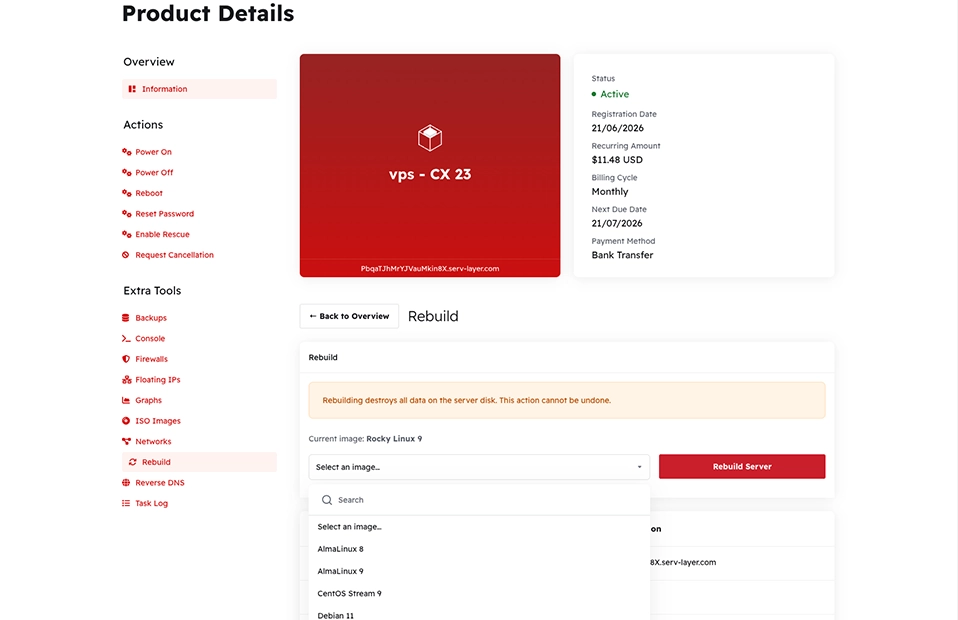
| Rebuild | Reinstalls the server from a chosen image |
| Rescue mode | Boots into the Hetzner rescue system |
| Snapshots | Create and manage server snapshots |
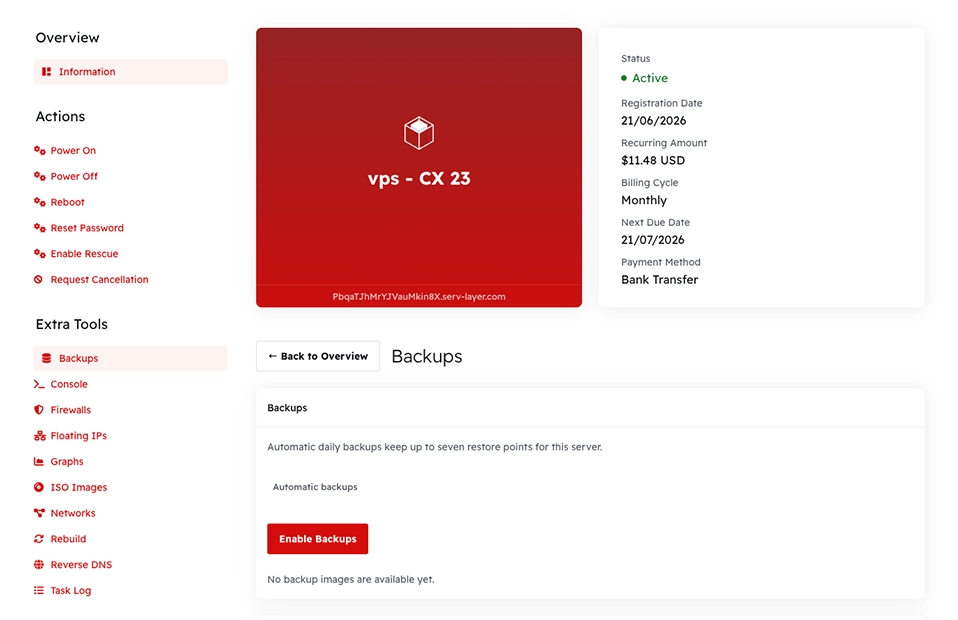
| Backups | View automated backup status |
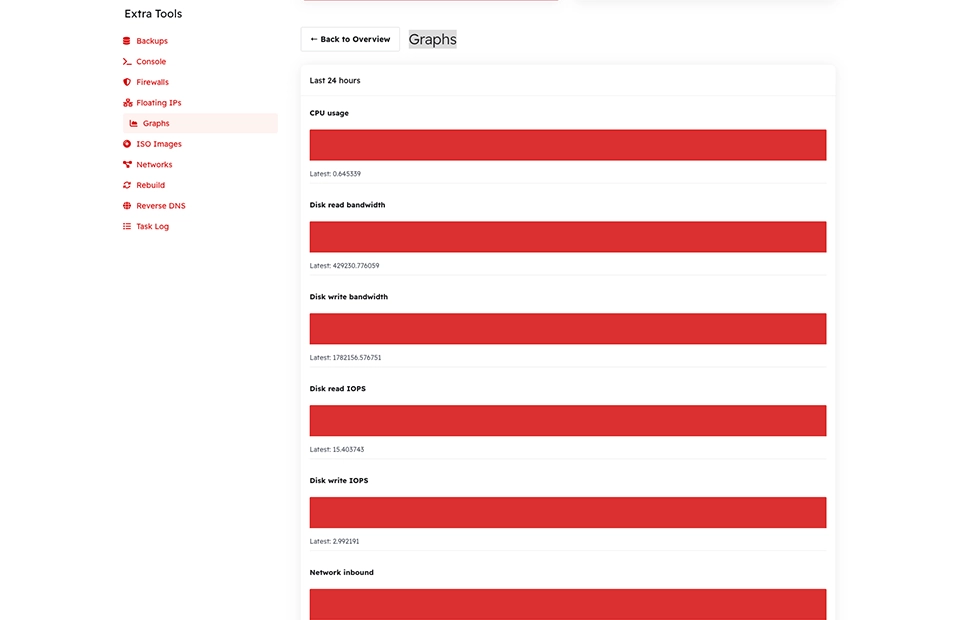
| Graphs | CPU, disk, and network usage sparklines |
Caution
Rebuild reinstalls the server's operating system and erases all data on the primary disk. It cannot be undone. Confirm the correct server and image before rebuilding.
Admin service tab
When viewing Clients → Services → [Cloud service], the module tab shows live API data in a card layout — hostname, IPs, specs, image, and traffic. Use the module command Sync Details to refresh WHMCS hostname/IP fields from Hetzner.
Troubleshooting
| Problem | Fix |
|---|---|
| Server missing from the inventory table | Refresh the page; confirm the server exists in the connected Hetzner project |
| Import button fails | Confirm the Cloud API Token has Read & Write scope |
| Client fields on service tab look stale | Run the Sync Details module command |
Related
- Import Server Types — create products before linking servers
- Client Area