
Guide
Cron Jobs
This page explains why Hetzner Suite needs cron jobs, what each service family's sync does, and how to copy panel-friendly crontab lines from the admin suite. It is written for administrators responsible for keeping automated sync running.
Why cron jobs are required
Hetzner Cloud, Storage Box, and Dedicated resources can change state outside of WHMCS — a customer might resize a server through the Hetzner console, or a background operation started from WHMCS might take time to complete on Hetzner's side. Cron jobs keep WHMCS service records, stock/inventory data, and usage-based billing in sync with the real state of each resource.
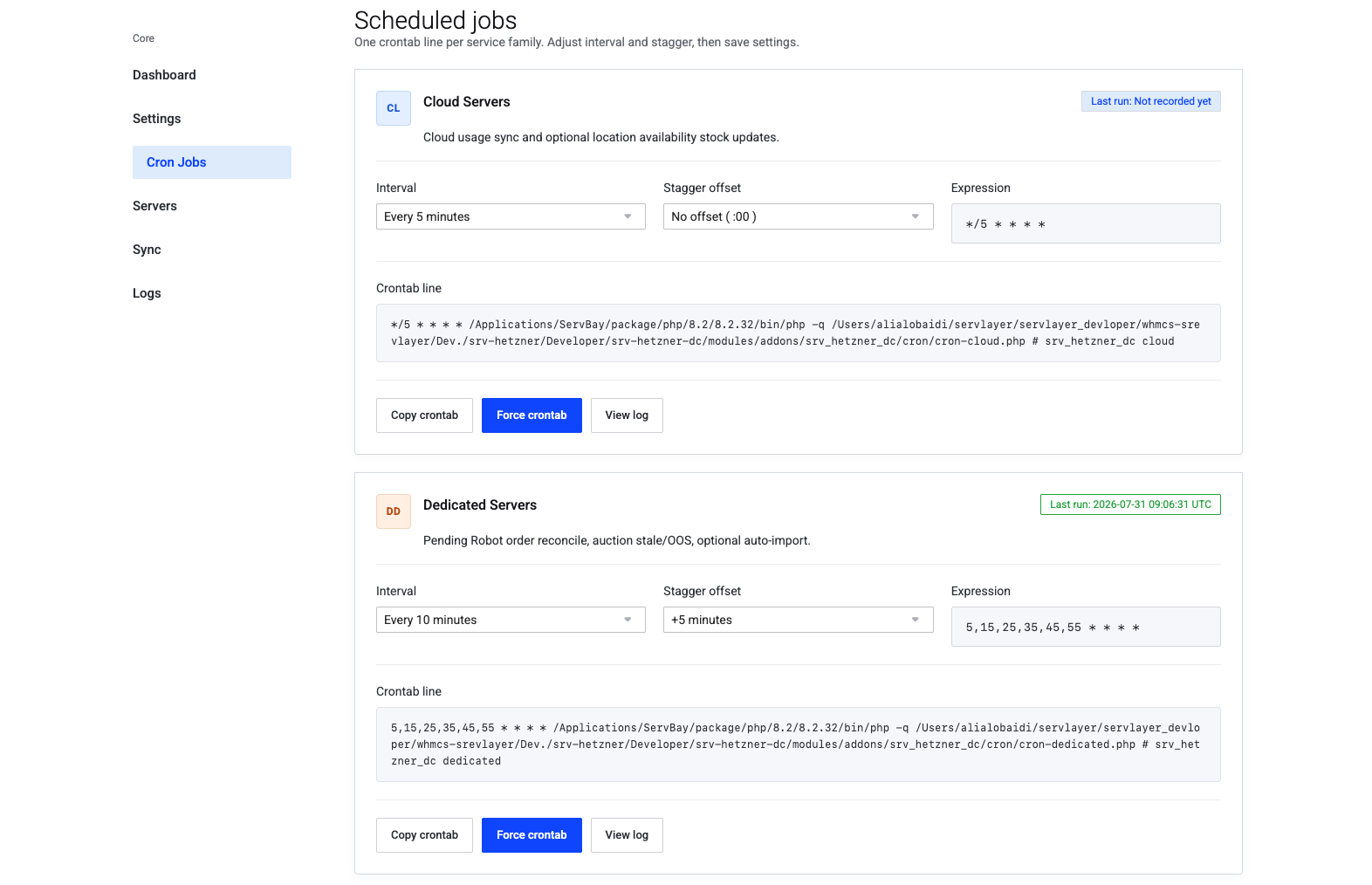
From Addons → Hetzner Suite → Cron Jobs, copy one crontab line per service family (or the combined legacy line). Lines use an absolute path form that most hosting panels accept:
*/5 * * * * /usr/bin/php -q /home/USER/public_html/modules/addons/srv_hetzner_dc/cron/cron-cloud.php # srv_hetzner_dc cloud
Warning
Prefer the absolute php -q /full/path/to/script.php form shown in the admin UI. Do not rely on cd /path/to/whmcs && php -q modules/... — many control panels (including cPanel) paste a single command field and reject awkward schedules such as 5-59/10.
Tip
Use simple steps such as */5 or */10. When a stagger offset is set (for example Dedicated +2 minutes), the UI emits an explicit minute list (2,12,22,32,42,52) instead of unsupported range/step expressions.
What each family's cron does
| Family | Cron responsibilities |
|---|---|
| Hetzner Cloud | Stock/availability sync for server types and locations, snapshot cache refresh, reconciliation of pending async operations (builds, rebuilds, resizes) |
| Storage Box | Order reconciliation for pending imports and provisions, usage sync for storage consumption used in metered billing |
| Dedicated Servers | Order reconciliation for Robot orders placed asynchronously (transaction id → live server), suspension/cancellation date tracking, usage and billing updates |
Across all three families, cron activity also keeps the Core dashboard's last-sync indicators accurate.
Reviewing cron activity
The admin suite includes job cards, manual run actions, and a log viewer.
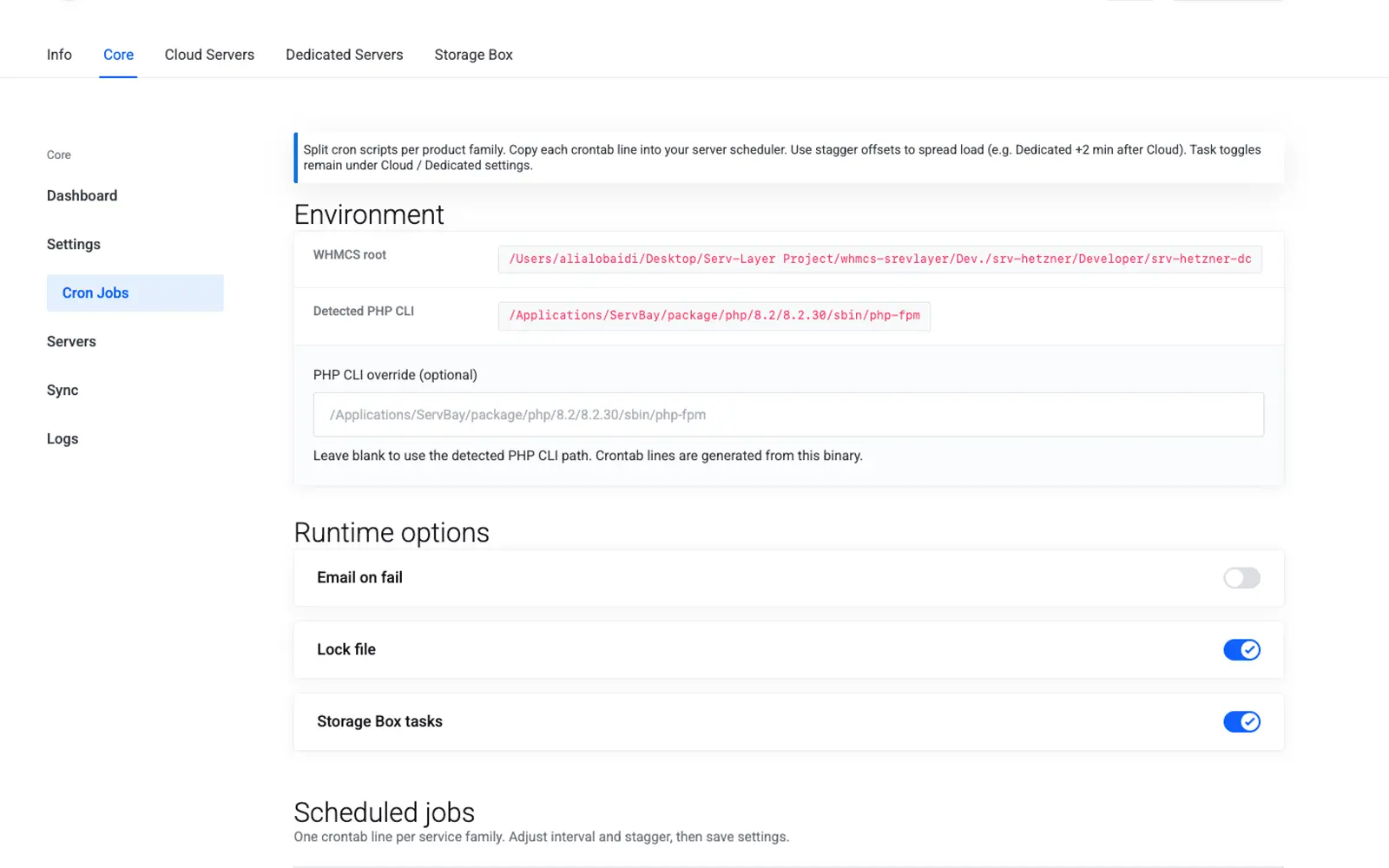
- Navigate to Addons → Hetzner Suite → Cron Jobs.
- Adjust interval and stagger per family, then Save settings.
- Copy each crontab line into your server scheduler (cPanel Cron Jobs, system crontab, etc.).
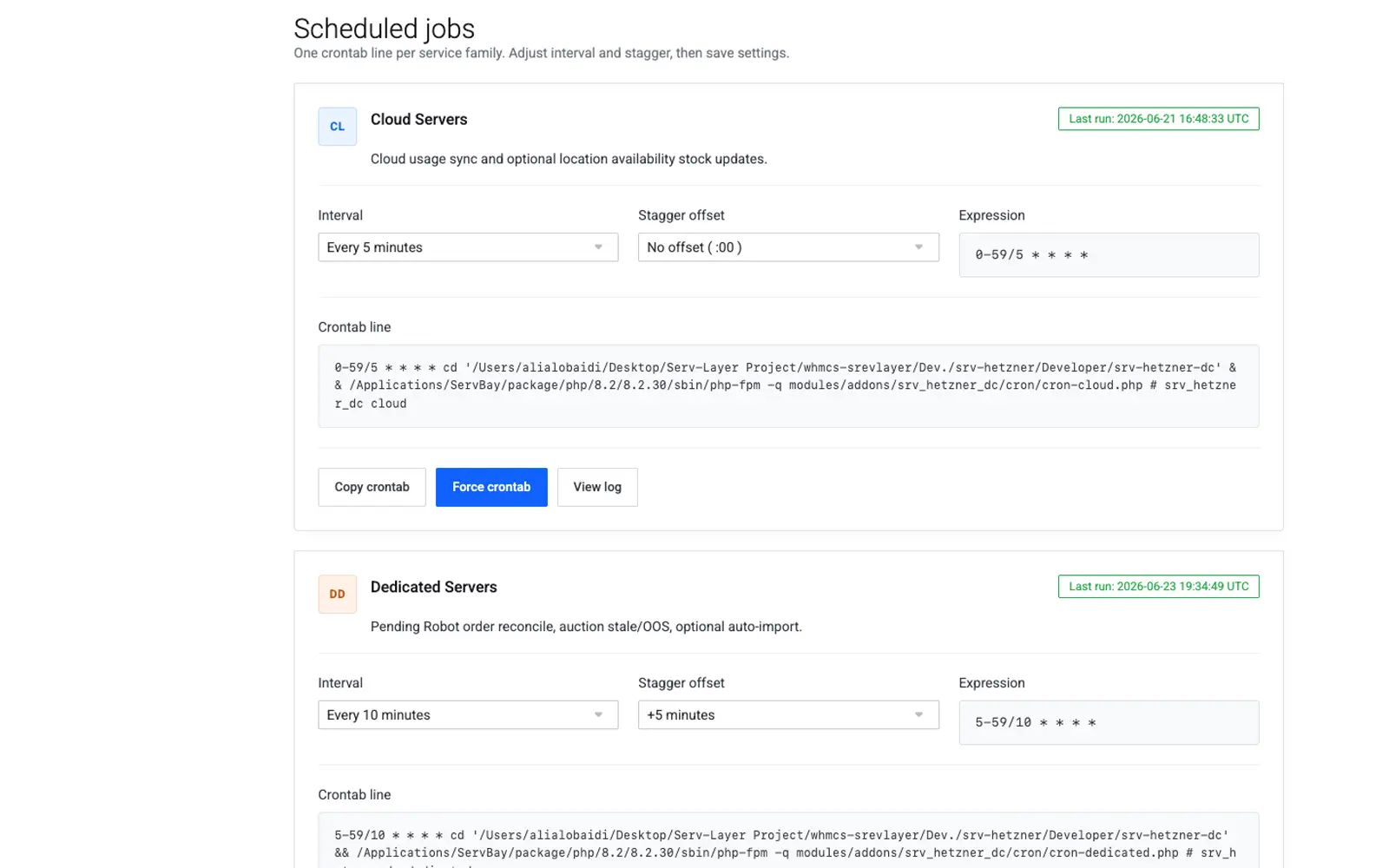
- Use Run now / Force actions when you need an immediate pass.
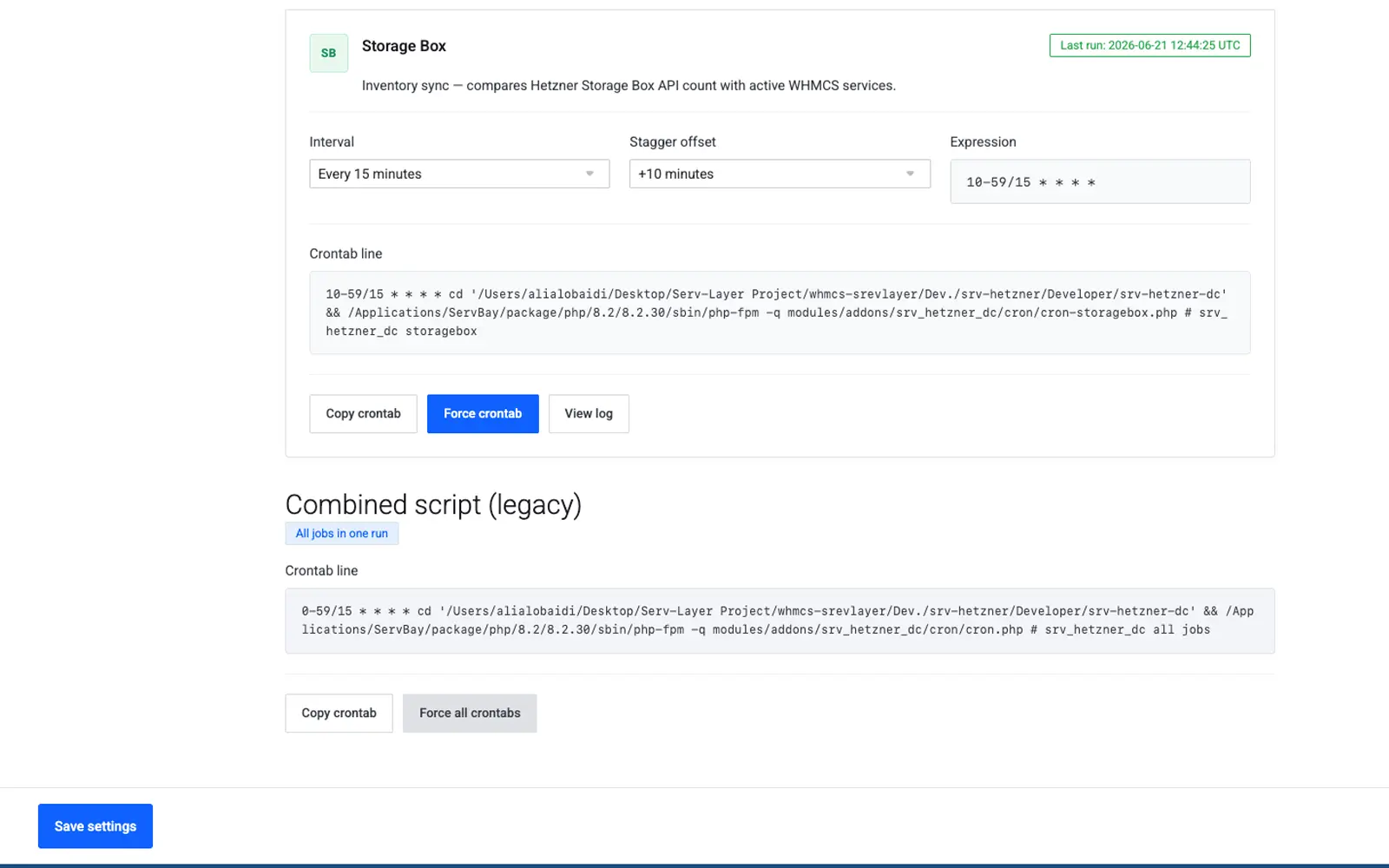
- Open the log viewer when troubleshooting a family that shows sync pending longer than expected on the dashboard.
Troubleshooting
| Problem | Fix |
|---|---|
| Dashboard always shows sync pending | Confirm each family crontab is scheduled and points at the absolute script path shown in the UI |
| Panel rejects the schedule | Replace range/step forms with */N or the minute list from the UI; avoid 5-59/10 |
| Cron run list is empty | The job has never executed — verify PHP CLI path (override on Cron Jobs if the detected binary is php-fpm) |
| A specific family shows repeated errors | Re-check that family's credentials; an expired or revoked token fails every sync pass |
Next step
This completes the Core section. Continue to your chosen family's getting-started guide — Hetzner Cloud, Storage Box, or Dedicated Servers.