
Guide
Product Settings
This page covers per-product markup, cron and stock sync behavior, and the client-area action toggles for Hetzner Cloud products. It is written for WHMCS administrators tuning pricing and client visibility on a per-product basis.
Menu: Addons → Hetzner Data Center Core → Cloud → Cloud Settings
Purpose
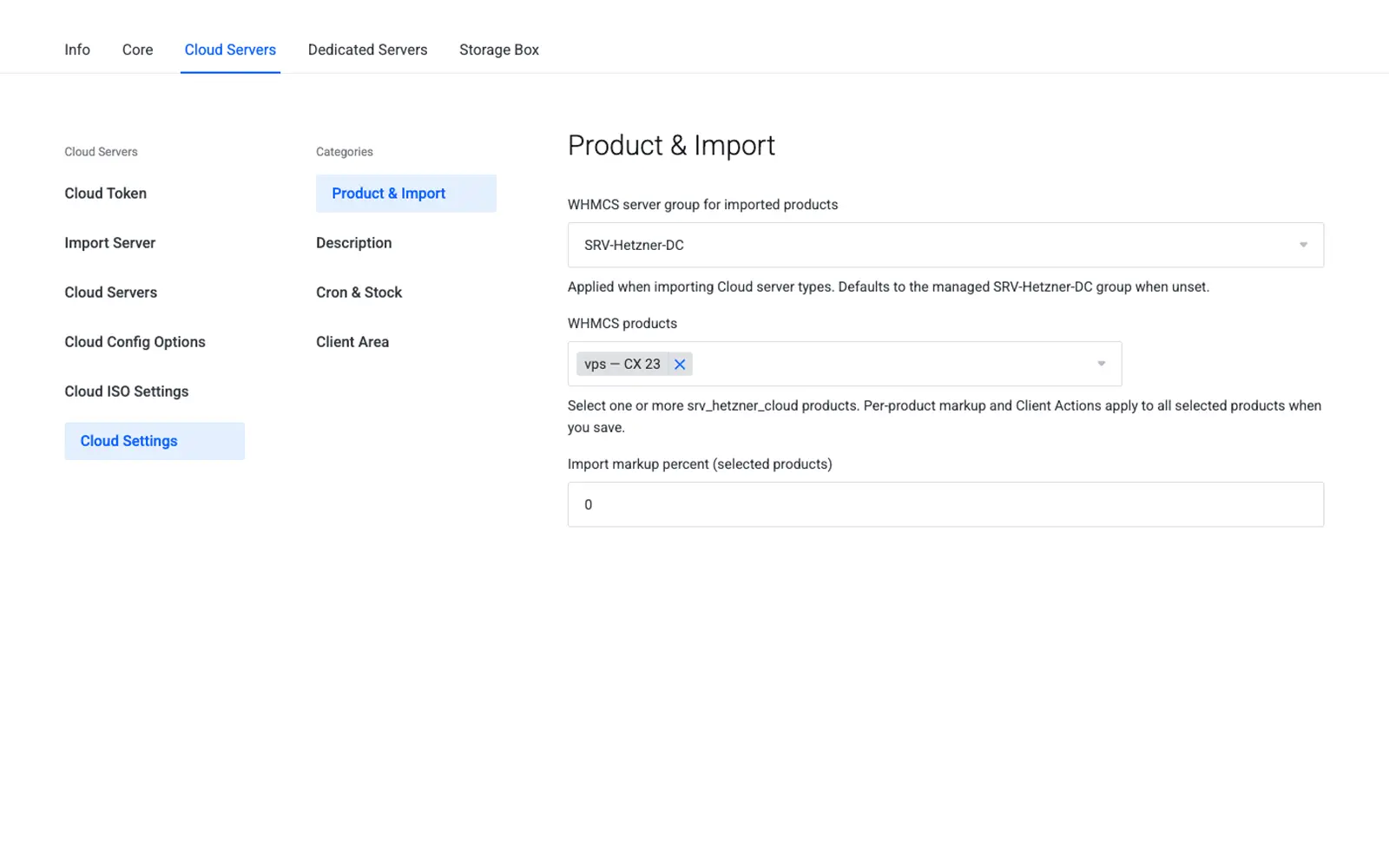
Cloud Settings holds per-product and global policies: import markup, cron stock sync, and client-area action visibility.
Tabs
Product & Import
| Field | Scope | Description |
|---|---|---|
| WHMCS Product ID | Session context | Enter the product ID before saving per-product fields |
| Import markup percent (this product) | Per product | Added to the Hetzner base price on import pricing |
Leave Product ID empty to save only the global cron settings.
Cron & Stock
| Field | Scope | Description |
|---|---|---|
| Default import markup percent | Global | Fallback markup used for imports |
| Sync availability to WHMCS stock | Global | Cron sets qty=0 on unavailable location options |
Note
When stock sync is on, make sure the WHMCS cron runs regularly so location availability stays aligned with Hetzner.
Client Actions
Toggle switches — each maps to a per-product setting for the Product ID entered above.
| Toggle | Client impact when OFF |
|---|---|
| Power On | Hidden from overview actions |
| Power Off | Hidden |
| Reboot | Hidden |
| Reset Password | Hidden |
| Enable Rescue | Hidden |
| Snapshots | Snapshot UI hidden |
| SSH Keys | SSH key UI hidden |
| Rebuild | Rebuild management page blocked |
| ISO Images | ISO tile/sidebar hidden; mount/unmount blocked |
Default when unset: enabled.
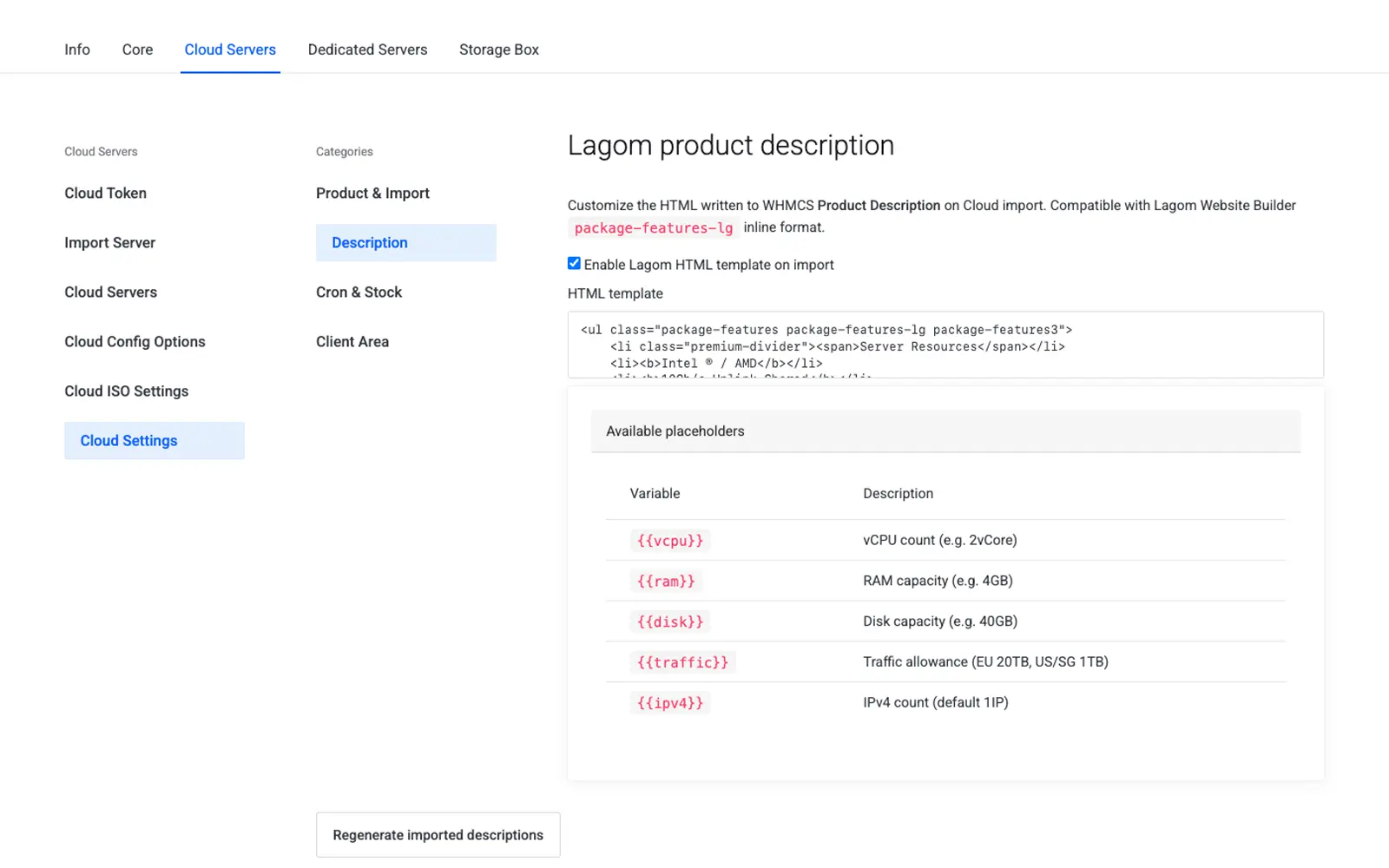
Product description tab
Each Cloud product also has a description tab where you can add customer-facing marketing copy shown on the order form and client area, separate from the module's technical settings.
Save behavior
- Save Settings (sticky footer) sends a single request that saves the active tab's fields plus all Client Action toggles for the given Product ID.
- A CSRF token is required, as with all WHMCS admin forms.
Examples
Budget product without ISO mounting
- Set Product ID to
42. - Under Client Actions, disable ISO Images.
- Click Save Settings.
Product 42 customers never see the ISO page; other products are unaffected.
Premium product with markup
- Set Product ID to
15. - Set Import markup to
15(percent). - Click Save Settings.
Settings reference
| Friendly name | System name | Type | Default |
|---|---|---|---|
| Per-product import markup | cloud.import_markup_percent |
percent | 0 |
| Global default import markup | cloud.import_markup_percent (global default) |
percent | 0 |
| Sync availability to stock | cloud.cron.sync_availability |
yes/no | No |
| Client action toggle | cloud.action.{key} |
yes/no | Yes (enabled) |
Troubleshooting
| Problem | Fix |
|---|---|
| Toggle changes do not appear to save | Confirm the Product ID field is filled in before clicking Save Settings |
| Stock never zeroes out unavailable locations | Enable Sync availability to WHMCS stock and confirm WHMCS cron is running |
| A client action still shows despite being disabled | Confirm you edited the correct Product ID; toggles are per product |
Related
- ISO Settings — global ISO whitelist
- Configurable Options — uses the cron stock flag
- Client Area