
Guide
ISO Settings
This page explains the global ISO image whitelist that controls which ISO images customers may mount on their Hetzner Cloud servers. It is written for WHMCS administrators managing Cloud catalog policy.
Menu: Addons → Hetzner Data Center Core → Cloud → ISO Settings
Purpose
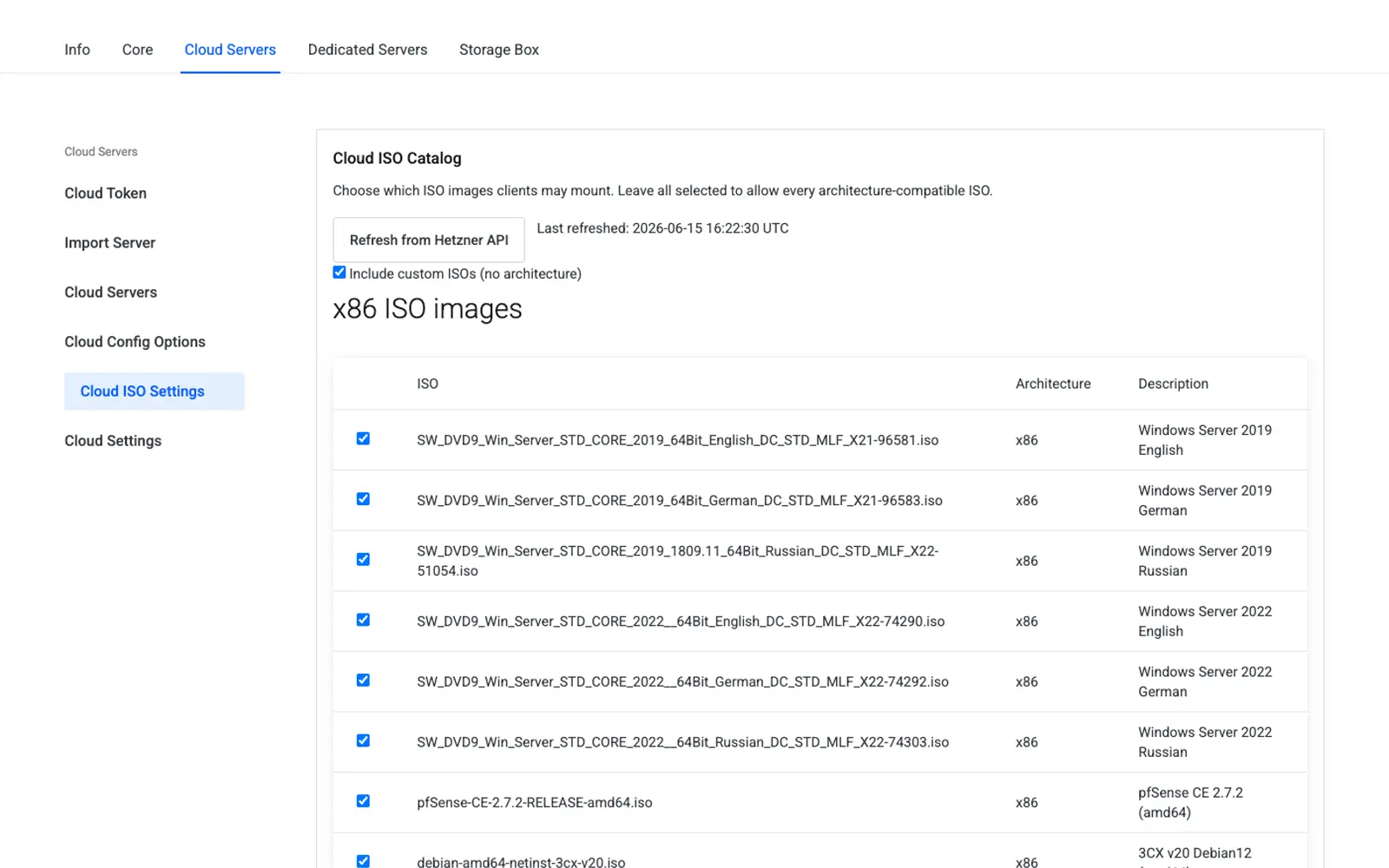
ISO Settings controls which ISO images customers may mount in the client area. This is a global catalog policy that applies to all Cloud products. Combine it with the per-product ISO Images toggle in Product Settings to hide ISO mounting entirely for specific products.
Page sections
Refresh bar
| Control | Behavior |
|---|---|
| Refresh from Hetzner API | Loads the ISO list from the API and updates the last-refreshed timestamp |
| Last refreshed | Display only — does not change the whitelist |
x86 ISO images
Table of ISOs returned for architecture x86 (includes architecture-tagged x86 ISOs).
| Column | Description |
|---|---|
| Checkbox | Include this ISO in the whitelist |
| ISO | Name |
| Architecture | x86, arm, or custom (no architecture field) |
| Description | Hetzner's description |
Include custom ISOs (no architecture) — when checked, user-uploaded ISOs without an architecture field are allowed for x86 servers.
ARM ISO images
Same layout for ARM (cax* servers), with a separate Include custom ISOs (no architecture) toggle.
Save as default
Saves the whitelist to cloud.iso_catalog.enabled as JSON:
{
  "enabled_x86": ["12345", "67890"],
  "enabled_arm": null,
  "include_custom_x86": true,
  "include_custom_arm": false
}
enabled_* value |
Meaning |
|---|---|
null |
All architecture-compatible ISOs allowed (all boxes checked) |
[] |
None allowed |
["id", ...] |
Only the listed ISO IDs are allowed |
How filtering works in the client area
- Server architecture is derived from the server type (
x86vsarm). - The API's ISO list is filtered by architecture (plus optional custom ISOs).
- The admin whitelist from this page is applied.
- The per-product ISO Images toggle may block the page entirely.
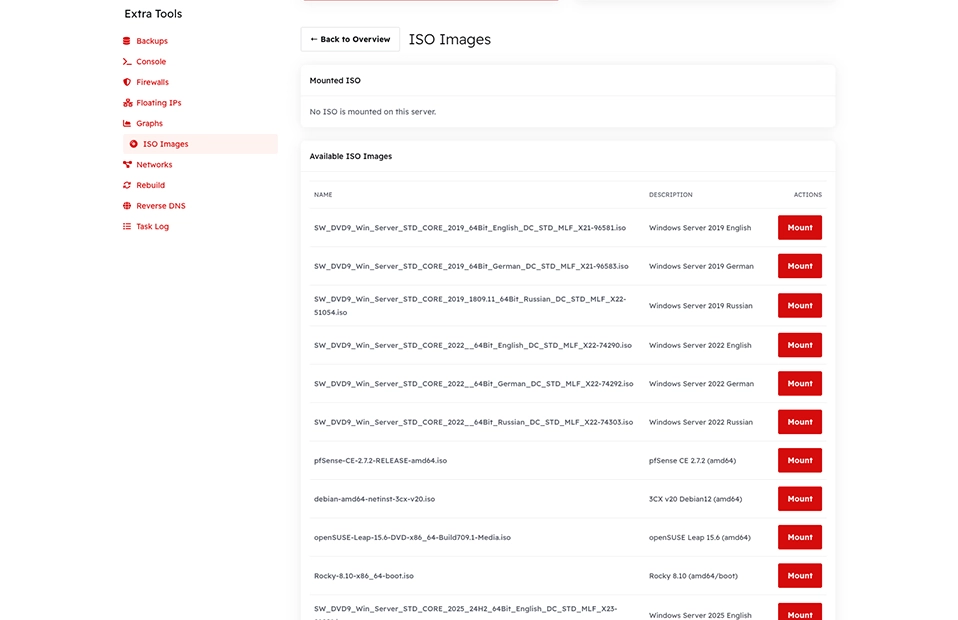
Customers see the resulting filtered list when mounting an ISO in the client area.
Workflow
- Click Refresh from Hetzner API after uploading new ISOs in Hetzner Console.
- Uncheck any ISOs you do not want customers to mount.
- Adjust the custom-ISO toggles if you use private ISO uploads.
- Click Save as default.
Settings reference
| Friendly name | System name | Type | Default |
|---|---|---|---|
| Enabled x86 ISO whitelist | cloud.iso_catalog.enabled.enabled_x86 |
array or null | null (all allowed) |
| Enabled ARM ISO whitelist | cloud.iso_catalog.enabled.enabled_arm |
array or null | null (all allowed) |
| Include custom x86 ISOs | cloud.iso_catalog.enabled.include_custom_x86 |
yes/no | No |
| Include custom ARM ISOs | cloud.iso_catalog.enabled.include_custom_arm |
yes/no | No |
Troubleshooting
| Problem | Fix |
|---|---|
| Empty tables | Configure the Cloud API Token |
| Customer does not see an ISO that should be available | Refresh the catalog; check the whitelist and architecture filter |
| ISO is hidden from the list but mounting still works elsewhere | Disable the ISO Images toggle in Product Settings for that product |