
Guide
Robot Webservice User
This page explains how to create a Hetzner Robot webservice user and save its credentials in WHMCS so Hetzner Data Center Core can manage your dedicated servers. It is written for WHMCS administrators performing the initial connection.
Why a separate webservice user
The Robot Webservice API (https://robot-ws.your-server.de) authenticates with HTTP Basic Auth, sent over HTTPS only — a username and password on every request, not a bearer token. Hetzner strongly recommends creating a dedicated webservice user for this rather than using your main Hetzner account login:
- The webservice user can only call the webservice API — it cannot log in to the Robot panel or the main Hetzner account.
- Your main account password never has to be entered into WHMCS or stored by the addon.
- You can revoke or rotate the webservice user independently of your main login.
Warning
Failed authentication attempts against Robot are rate-limited: after 3 failed attempts, the source IP is blocked for 10 minutes. Double-check the username and password before saving, and avoid repeated manual test attempts.
Step 1 — Create the webservice user in Robot
- Log in to the Hetzner Robot panel at
https://robot.hetzner.com. - Click the user menu in the upper-right corner.
- Select Settings.
- Open Web service and app settings.
- Create (or view) the webservice user credentials — a username and password separate from your main account login.
Note
The webservice user must have ordering enabled if you plan to import Standard or Market/Auction products and place orders through WHMCS. Confirm this in the same Web service and app settings screen.
Step 2 — Save the credentials in WHMCS
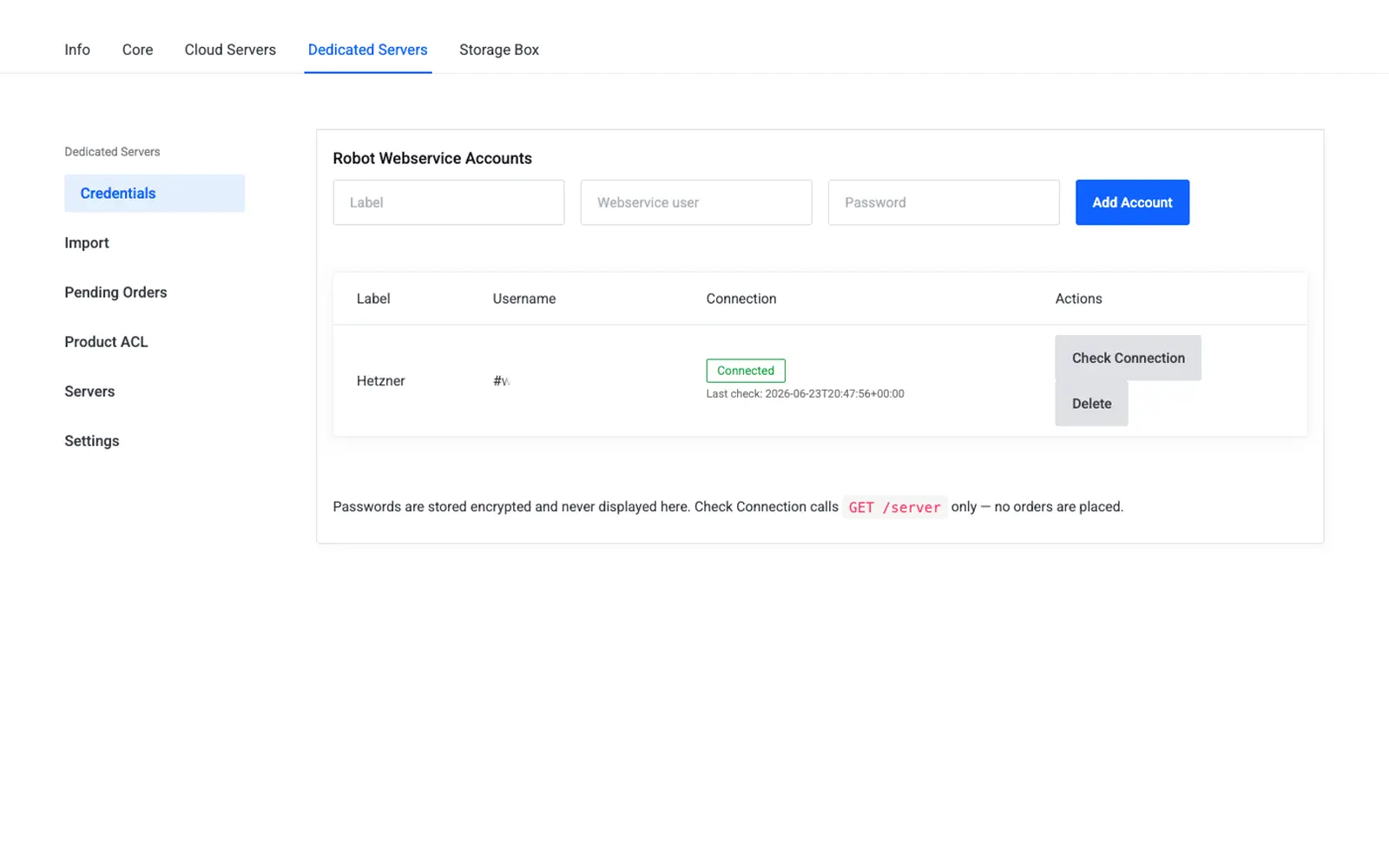
- Go to Addons → Hetzner Data Center Core → Dedicated Servers → Credentials.
- Enter:
- Webservice Username — the username from Step 1.
- Webservice Password — the password from Step 1.
- Click Save. The password is encrypted at rest and is never displayed again in the admin UI.
- Click Check Connection to verify the addon can reach Robot with these credentials.
Note
The addon uses a single reseller-level Robot webservice account for all Dedicated products (the same design used for the Cloud and Storage Box tokens). A per-client credential extension is planned but not part of the current release.
Connection status
The Credentials page shows a status badge for the saved account:
| Status | Meaning |
|---|---|
| Not checked | No connection test has been run yet |
| Connected | GET /server succeeded with these credentials |
| Failed | Robot rejected the credentials, or a transport/network error occurred |
The last check time is stored in the addon settings.
Settings reference
| Friendly name | System name | Type | Default |
|---|---|---|---|
| Webservice username | robot_username |
text | — |
| Webservice password | robot_password |
password (encrypted) | — |
Troubleshooting
| Problem | Fix |
|---|---|
| Test connection fails | Confirm the webservice user was created under Robot panel → user menu → Settings → Web service and app settings, and that credentials were copied without extra spaces |
| Source IP temporarily blocked | Wait 10 minutes after 3 failed attempts before retrying — this is a Hetzner-side rate limit, not an addon bug |
| Import catalog is empty | Ensure ordering is enabled for the webservice user in Robot |
References
- Robot Webservice preface and authentication: https://robot.hetzner.com/doc/webservice/en.html
- Robot documentation hub: https://docs.hetzner.com/robot/
- Robot interfaces overview: https://docs.hetzner.com/robot/dedicated-server/robot-interfaces/
Next step
Continue to Settings to configure product groups and import defaults before importing your catalog.