
Guide
Storage Box — Import Types
This page explains how to import Hetzner Storage Box plan types and turn them into sellable WHMCS products. It is written for WHMCS administrators building out the Storage Box catalog.
What "Import Types" does
Hetzner offers a catalog of Storage Box types (for example bx11, bx21) that differ by capacity. Instead of manually re-typing this catalog into WHMCS, the Import Types page reads it directly from the Hetzner API and lets you generate a matching WHMCS product for any type you want to sell.
Note
Import Types requires a working Storage Box API token. Complete API Token first.
Step 1 — Open Import Types
Go to Addons → Hetzner Data Center Core → Storage Box → Import Types.
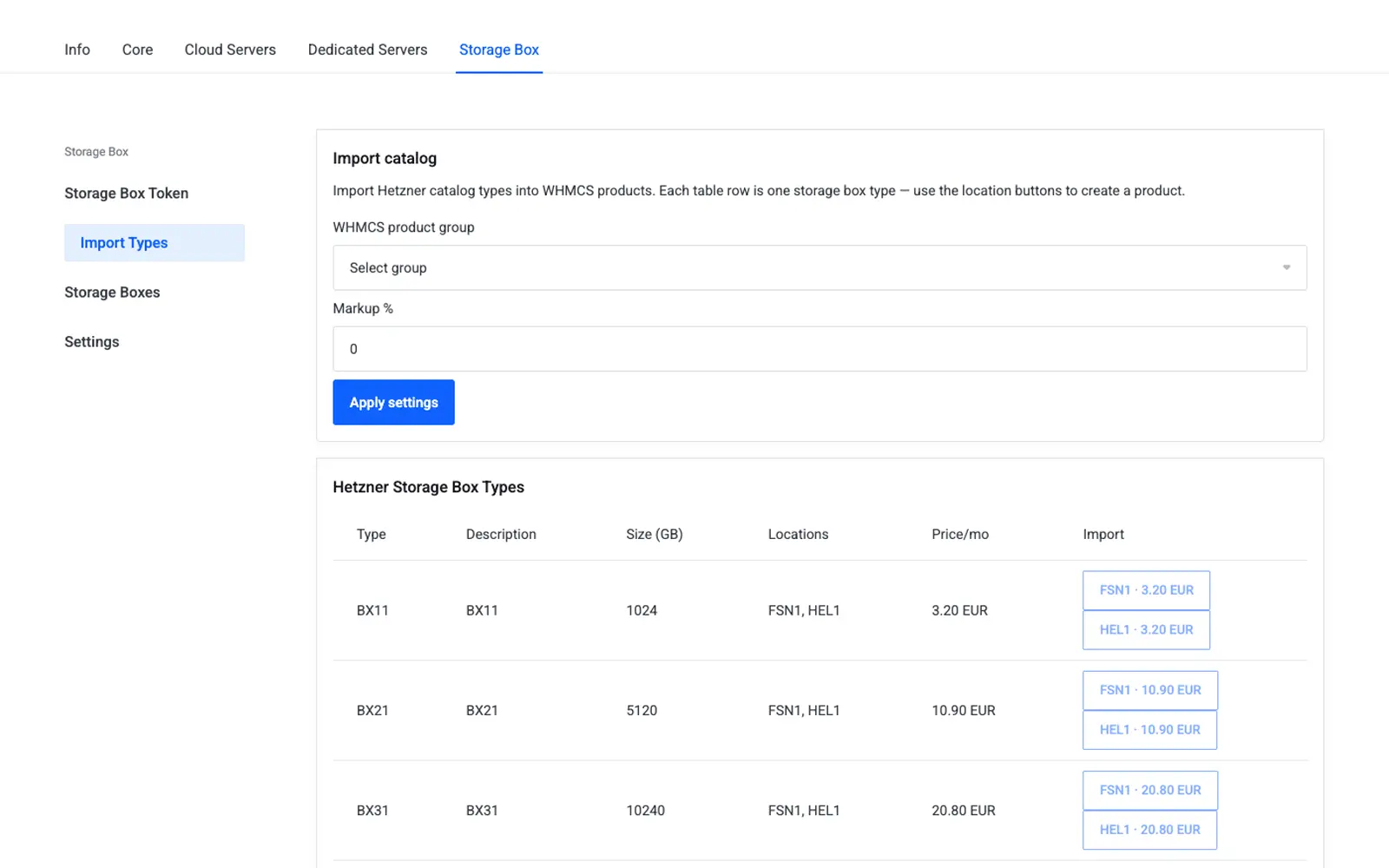
The page lists the Storage Box types currently available from Hetzner, typically including the plan name, capacity, and available locations.
Step 2 — Import a type as a product
- Select the Storage Box type you want to sell.
- Click Import (or the equivalent action next to the type).
- WHMCS creates a new product under Setup → Products/Services → Products/Services with:
- Product Type: Other
- Module Name: Hetzner Storage Box
- Open the new product's Module Settings tab and confirm:
- Storage Box Type matches the imported plan (for example
bx11,bx21). - Location is set to a valid Hetzner location code (for example
fsn1,nbg1,hel1). - Server Group points to the server group containing your Storage Box server (added under Setup → Products/Services → Servers, module Hetzner Storage Box).
- Storage Box Type matches the imported plan (for example
Step 3 — Finish product setup
After import, treat the product like any other WHMCS product:
- Set pricing under the product's Pricing tab.
- Adjust product name, description, and group placement for the storefront.
- Review Settings for markup, sync, and client-area options before publishing the product.
Tip
Import one Storage Box type per WHMCS product. Selling multiple capacities from a single product forces customers into configurable options that the module does not manage automatically.
Custom fields created automatically
Importing (and subsequently ordering) a Storage Box product creates a serverID custom field on the service, used by the module to track the provisioned Storage Box's Hetzner ID for all later API calls.
Troubleshooting
| Problem | Fix |
|---|---|
| Import Types page is empty | Verify the API token is saved and passes Test Connection on API Token |
| Imported type has no matching server | Add or check the Storage Box server under Setup → Products/Services → Servers, then re-assign the Server Group on the product |
| Wrong location shown after import | Edit the Location field on the product's Module Settings tab manually |
Next step
Continue to Boxes & Inventory to see live Storage Boxes and link existing boxes to services.