
Guide
Servers Inventory
This page explains how to view live dedicated server inventory from Hetzner Robot and link existing servers to WHMCS services. It is written for WHMCS administrators managing already-provisioned hardware.
Where to find it
Addons → Hetzner Data Center Core → Dedicated Servers → Servers
This page lists every server Hetzner reports for the connected Robot account, alongside whatever WHMCS service it is currently linked to (if any).
Inventory columns
| Column | Source |
|---|---|
| Server number | Robot server_number |
| IP / name | Robot server_ip, server_name |
| Product | Robot product |
| Status | Robot status |
| WHMCS client | Linked service domain and client name, if linked |
Linking an existing server to a WHMCS service
If a server shows no WHMCS client — for example, a server ordered directly in the Robot panel before the addon was installed — you can link it manually:
- Find the server in the inventory list.
- Use the Link action for that row.
- Choose the existing WHMCS service to associate it with.
- Save. The server number is stored in the product's
serverIDcustom field, which the module uses for all subsequent Robot API calls for that service.
Server actions
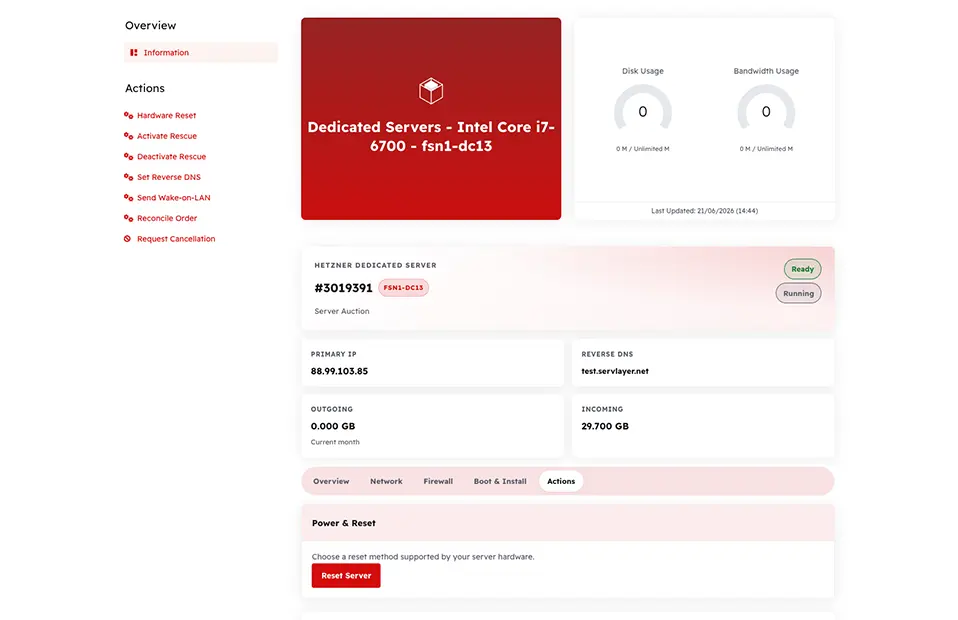
Once a server is linked to an active service, admins and (where permitted) clients can act on it directly.
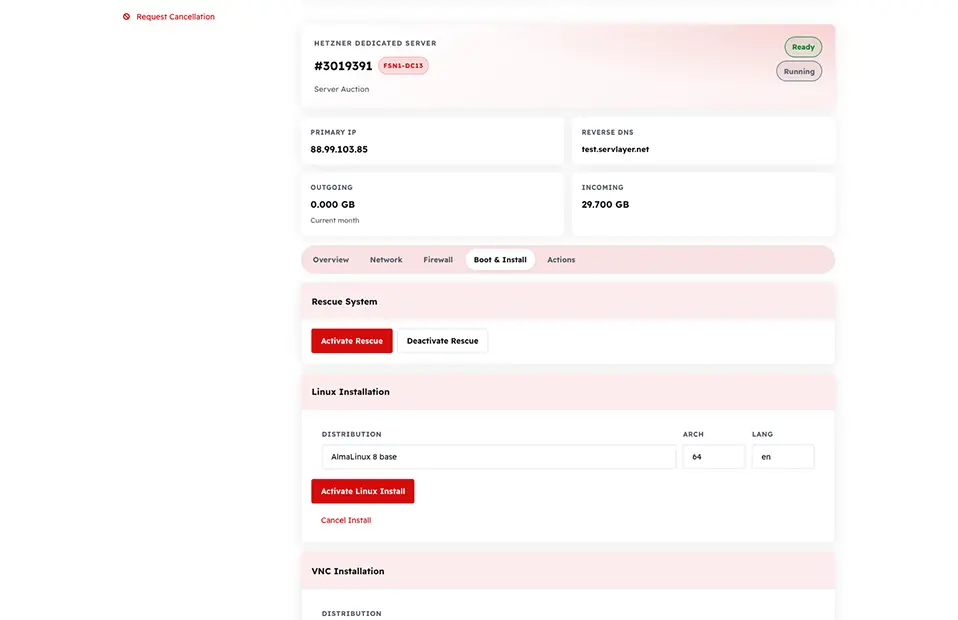
Boot options
Boot configuration covers rescue mode, Linux installation images, and related boot-time settings.
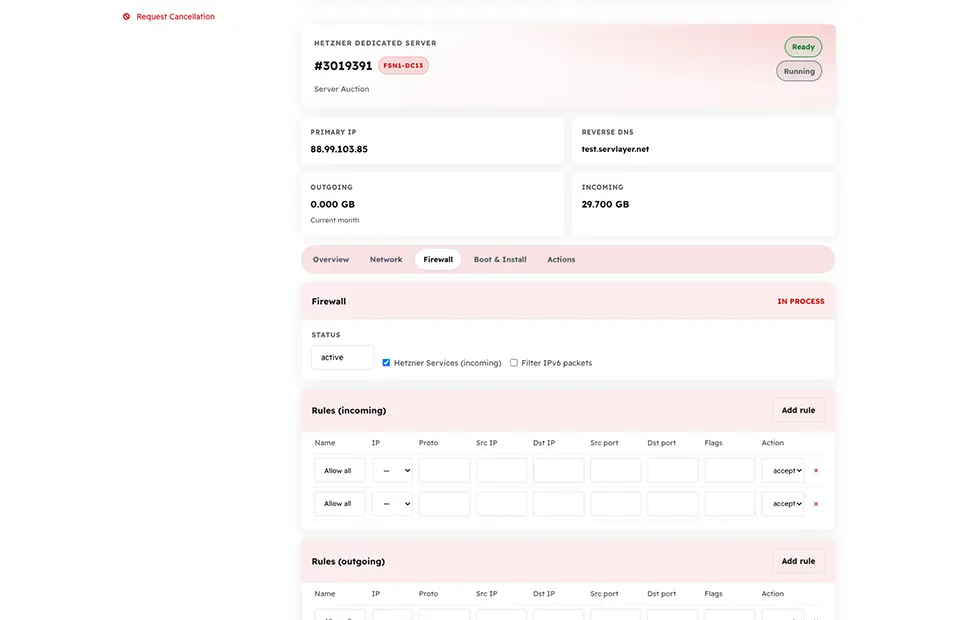
Firewall
Robot's stateless hardware firewall rules can be reviewed and edited per server.
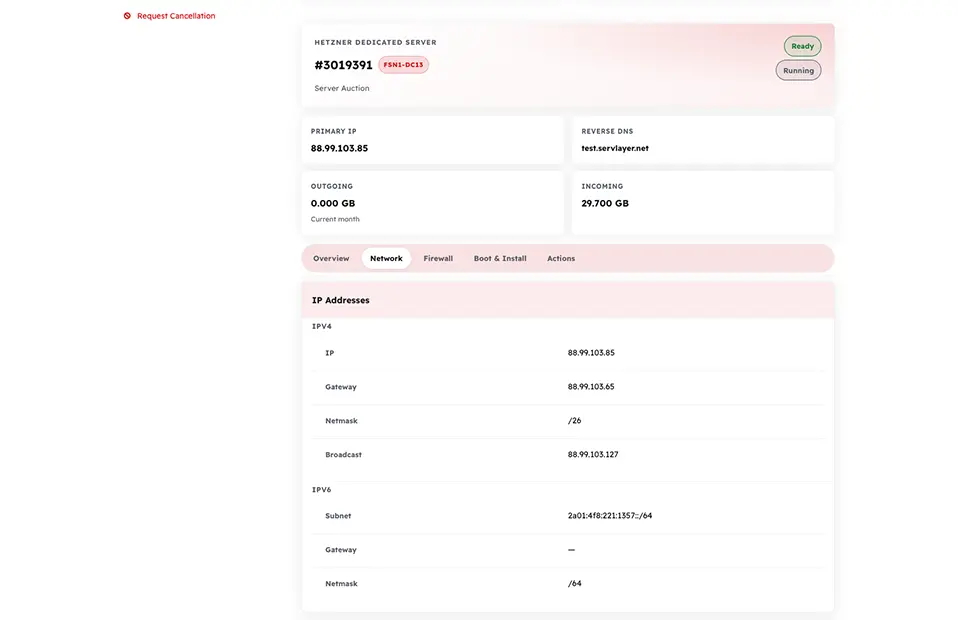
Network
Network details include the primary IP, any additional IPs or subnets, and reverse DNS entries.
Note
Which of these actions are also exposed to the customer in the client area is controlled per-permission on the Settings page, Client Area tab. See Client Area for the customer-facing view.
Troubleshooting
| Problem | Fix |
|---|---|
| Server missing from the inventory list | Confirm it belongs to the Hetzner Robot account connected on the Robot Webservice User page |
| Link action not available | The server may already be linked to another WHMCS service — check for a duplicate serverID |
| Firewall or boot changes not reflecting | Refresh the page; Robot changes can take a short time to propagate |
Related
- Robot Webservice User — connecting the Robot account
- WHMCS Product Module
- Client Area