
Guide
Import Standard and Auction Products
This page explains how to browse the live Hetzner Robot catalog and import both Standard (order) and Market/Auction dedicated server products into WHMCS. It is written for WHMCS administrators building or refreshing their dedicated server product lineup.
Where to find it
Addons → Hetzner Data Center Core → Dedicated Servers → Import
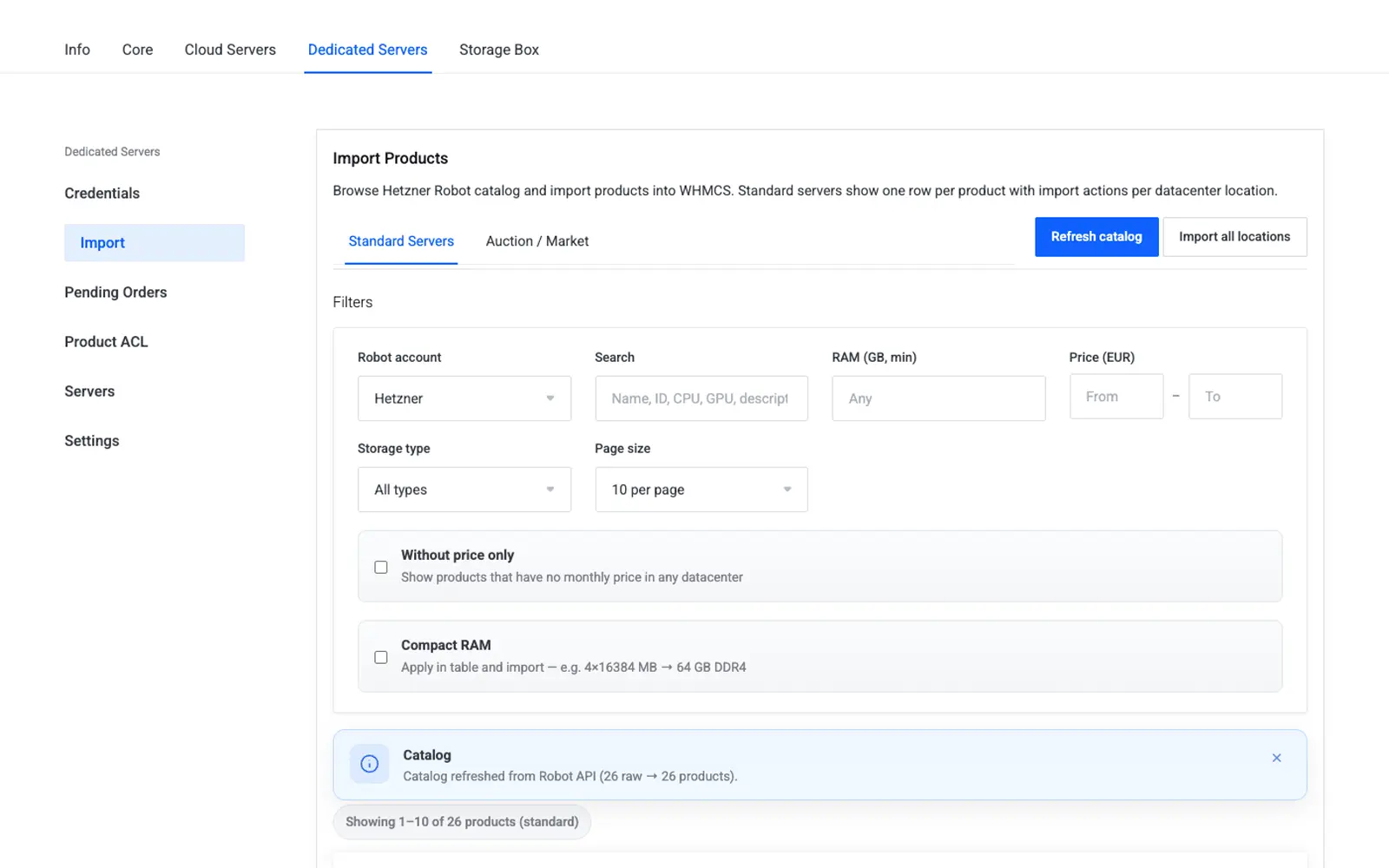
The Import page has two mode tabs — Standard and Auction — that switch without a full page reload, browsing the catalog through the Robot account saved on the Robot Webservice User page.
Importing Standard products
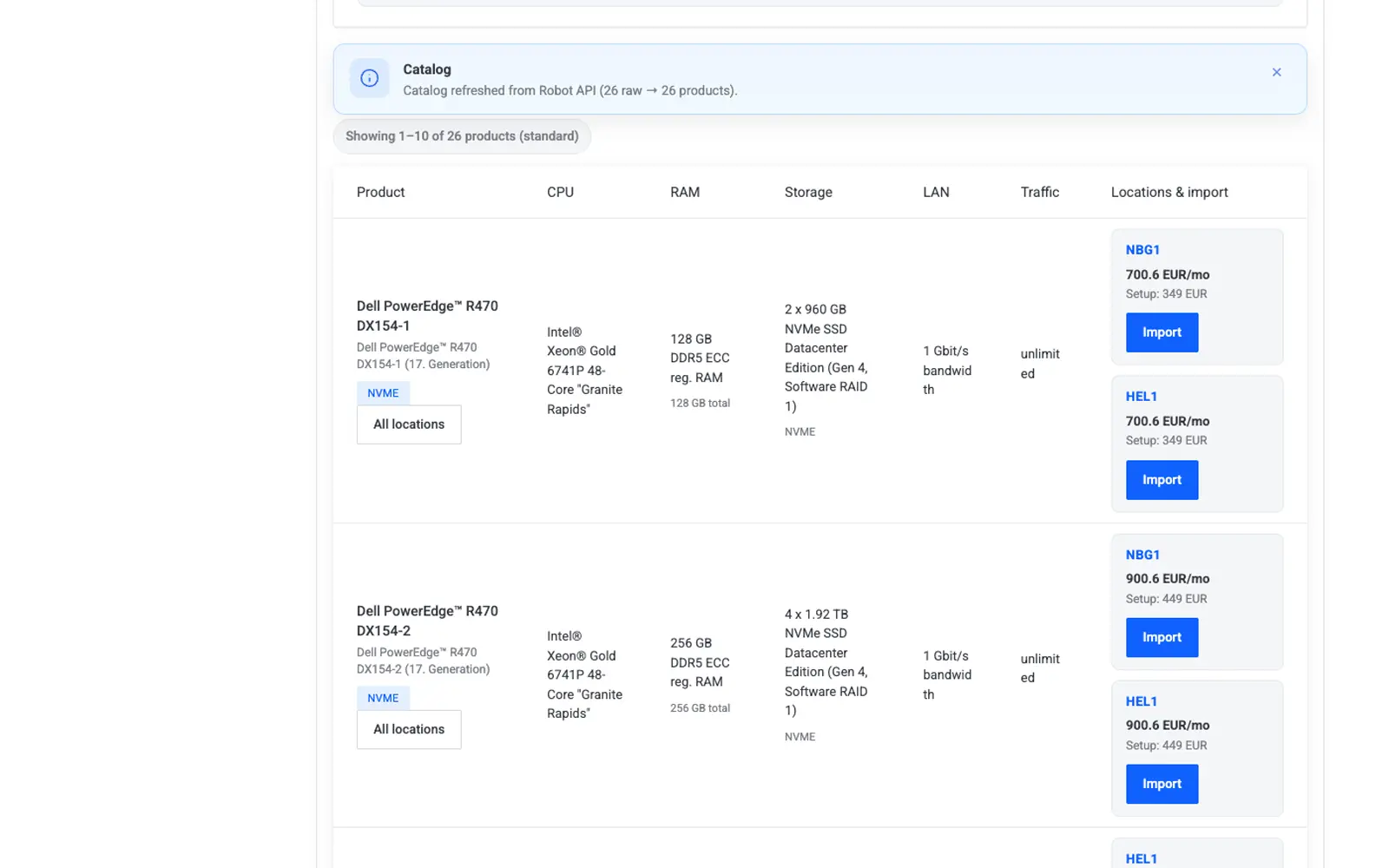
Standard products are Hetzner's fixed-configuration servers, ordered by product ID and datacenter location.
- Open the Standard tab.
- Use the filters — search text, location, storage type, price range, RAM range, CPU cores — to narrow the catalog.
- For a product available in one location, click Import next to that location.
- To import the same product across every location where it is offered, use Import all locations — this creates one WHMCS product per location in a single batch.
Importing Auction/Market products
Auction (Market) products are one-off, discounted hardware currently listed by Hetzner. Availability changes frequently.
- Open the Auction tab.
- Use the same filters to find the hardware you want to resell.
- Click Import to create a WHMCS product for that listing.
- If Allow market purchase is enabled on the Settings page, you can also buy the server directly from the Import screen using Purchase — this places a live Robot market order immediately, so use it deliberately.
Caution
Direct market purchase from the Import screen places a real, billable Robot order. Only use Purchase when you intend to buy that specific piece of hardware right away.
Note
Ordinary catalog browsing and connection checks only use read-only Robot endpoints (GET /server, catalog GET calls). No orders or transactions are placed just by opening the Import page or applying filters.
Handling conflicts
If a WHMCS product already exists for the same Robot key (product ID + location for Standard, or product ID alone for Auction), the importer shows a conflict dialog with three choices:
- Update existing — refresh pricing and description on the existing product.
- Skip — leave the existing product untouched.
- Create new — add a second WHMCS product for the same Robot item.
Auction stale policy
Auction listings can disappear from the Robot catalog between refreshes (the hardware sold, or was withdrawn). When that happens, the addon applies the policy chosen on the Settings page:
| Policy | Effect |
|---|---|
| Quantity zero | Set the WHMCS product's stock quantity to 0 |
| Hidden | Hide the product from the order form |
| Delete | Remove the WHMCS product row entirely |
What gets set on import
| Field | Value |
|---|---|
| Module | srv_hetzner_dedicated |
| Robot product ID | Stored as a module configuration option |
| Location | Stored for Standard products only |
| Order type | standard or market, set automatically |
| Pricing | Monthly and setup fees, with the configured import markup applied |
| Custom fields | serverID and robotTransactionID, created automatically if missing |
Troubleshooting
| Problem | Fix |
|---|---|
| Import catalog is empty | Confirm the webservice user has ordering enabled — see Robot Webservice User |
| Import button missing for a location | That product is not currently offered in that datacenter; refresh the catalog |
| Auction product vanished after refresh | Expected — check the applied stale policy |
| Prices look wrong after import | Check Import markup % on Settings |
Next step
Continue to WHMCS Product Module to review how imported products map to the server module.