
Guide
Dedicated Settings
This page documents the Dedicated Servers settings tabs — General, Client Area, Product Import, Description, and Cron — used to control markup, customer permissions, import naming, Lagom product copy, and family cron toggles. It is written for WHMCS administrators configuring the family after connecting the Robot account.
Where to find it
Addons → Hetzner Suite → Dedicated Servers → Settings
General tab
Covers pricing markup, reverse DNS defaults, and auction/market behavior.
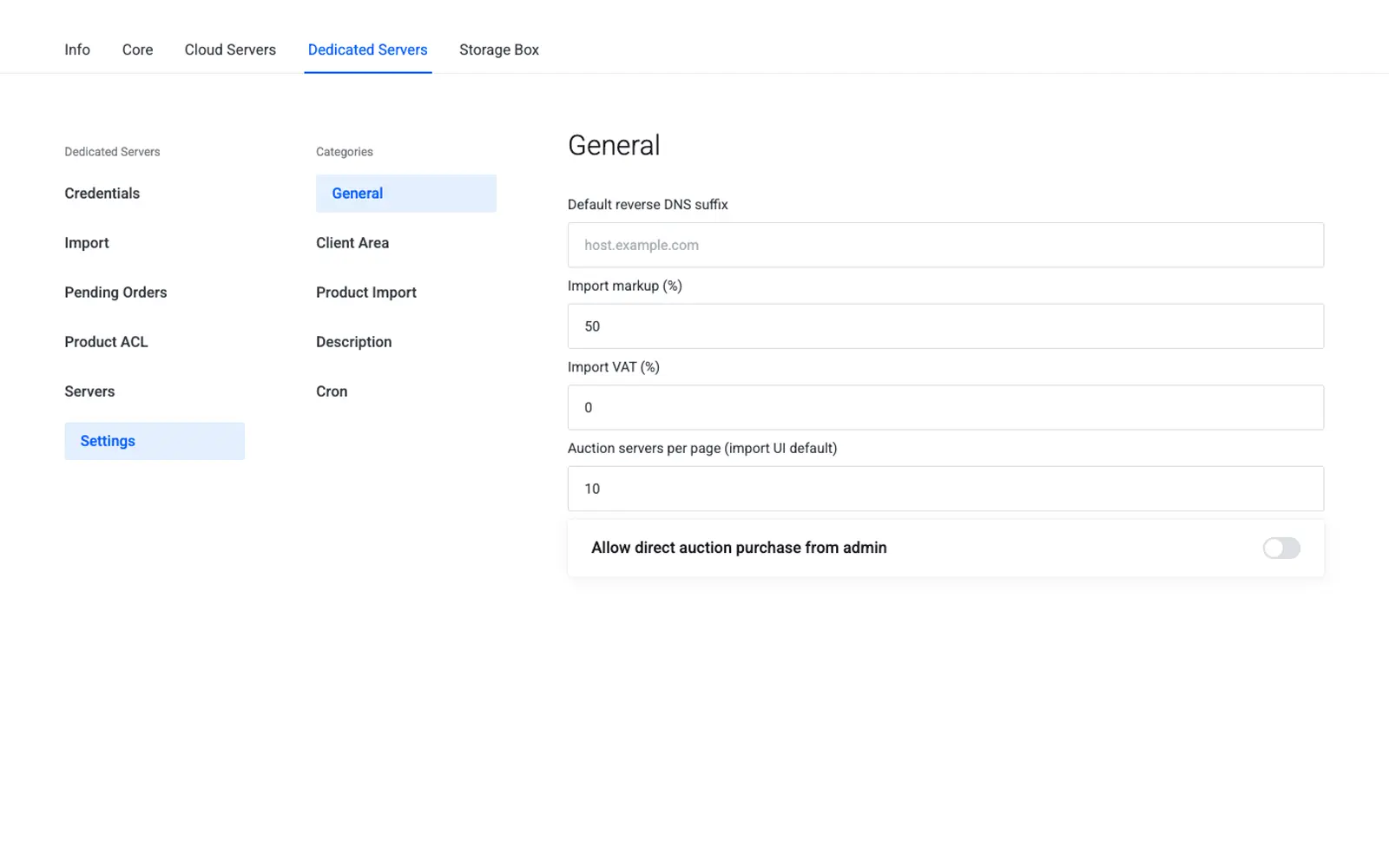
| Friendly name | System name | Type | Default |
|---|---|---|---|
| Default rDNS suffix | dedicated.default_rdns |
text | — |
| Import markup % | dedicated.import_markup_percent |
number | 0 |
| Auction page size | dedicated.market_page_size |
number | 20 |
| Allow market purchase | dedicated.allow_market_purchase |
yes/no | No |
| Auto-import market products | dedicated.auto_import_market |
yes/no | No |
Note
Auto-import market products lets the cron job import newly listed auction SKUs into WHMCS automatically. See Pending Orders for how the cron job runs.
Client Area tab
Controls which self-service actions customers see on their dedicated server's client area overview.
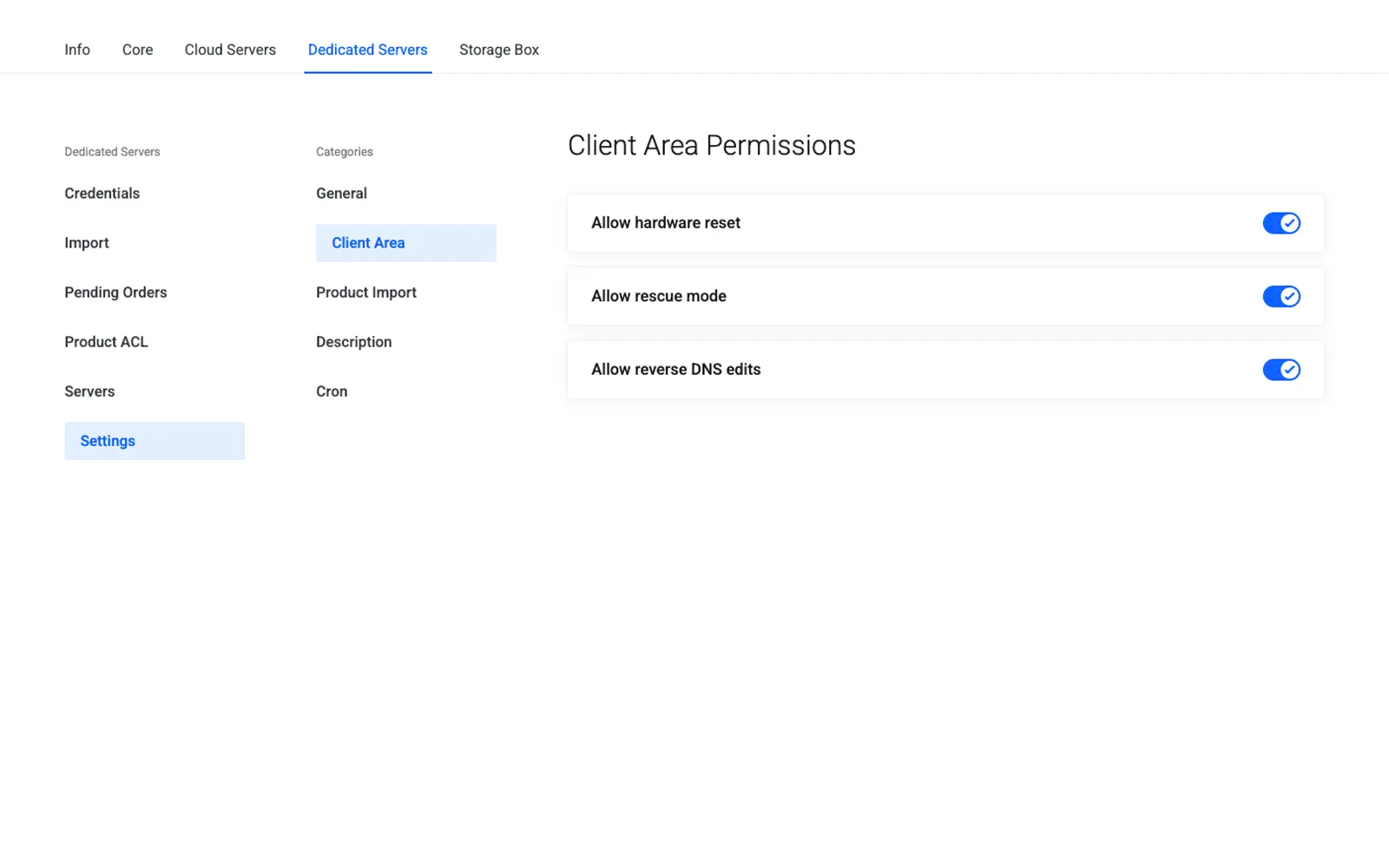
| Friendly name | System name | Type | Default |
|---|---|---|---|
| Allow hardware reset | dedicated.client_reset |
yes/no | Yes |
| Allow rescue mode | dedicated.client_rescue |
yes/no | Yes |
| Allow rDNS edits | dedicated.client_rdns |
yes/no | Yes |
| Allow Linux install | dedicated.client_linux |
yes/no | No |
| Allow Wake-on-LAN | dedicated.client_wol |
yes/no | No |
| Allow firewall | dedicated.client_firewall |
yes/no | Yes |
| Allow addons | dedicated.client_addons |
yes/no | No |
Product Import tab
Controls which WHMCS product/server groups new imports land in and how imported products are named.
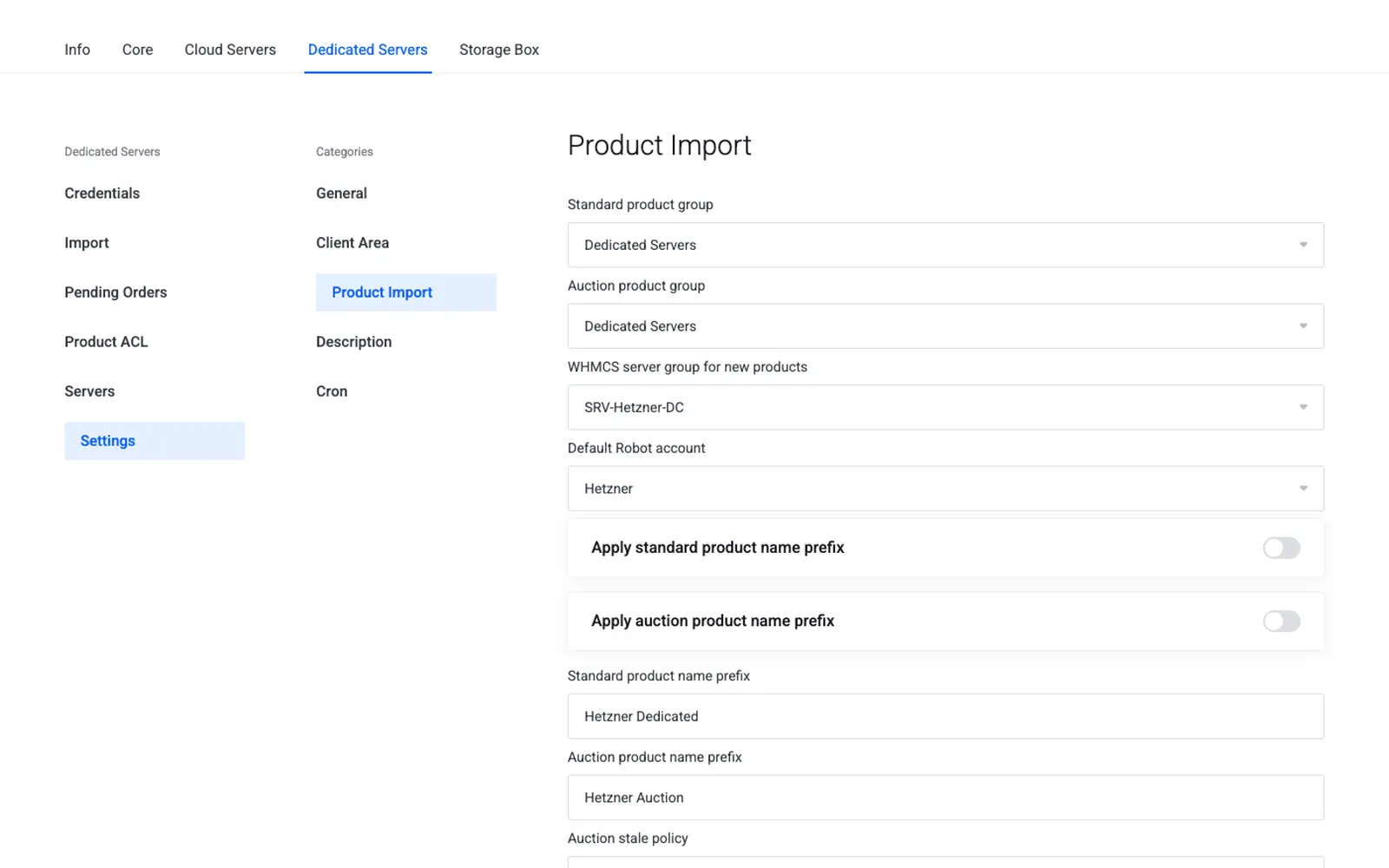
| Friendly name | System name | Type | Default |
|---|---|---|---|
| Standard product group | dedicated.import.product_group_standard |
select | — |
| Auction product group | dedicated.import.product_group_auction |
select | — |
| WHMCS server group | dedicated.import.server_group |
select | — |
| Standard prefix enabled | dedicated.std_prefix_enabled |
yes/no | No |
| Auction prefix enabled | dedicated.market_prefix_enabled |
yes/no | No |
| Standard prefix text | dedicated.std_product_prefix |
text | — |
| Auction prefix text | dedicated.market_product_prefix |
text | — |
| Auction stale policy | dedicated.auction_stale_policy |
select (qty_zero|hidden|delete) |
qty_zero |
| Import columns | dedicated.import.columns (JSON) |
JSON | cpu,ram,storage,nic,location,price,setup,description |
Description tab
Controls the product title template and the Lagom-compatible HTML written to WHMCS Product Description on import. Placeholders such as {{cpu_model}}, {{ram_value}}, and {{location}} are listed in the Available placeholders widget.
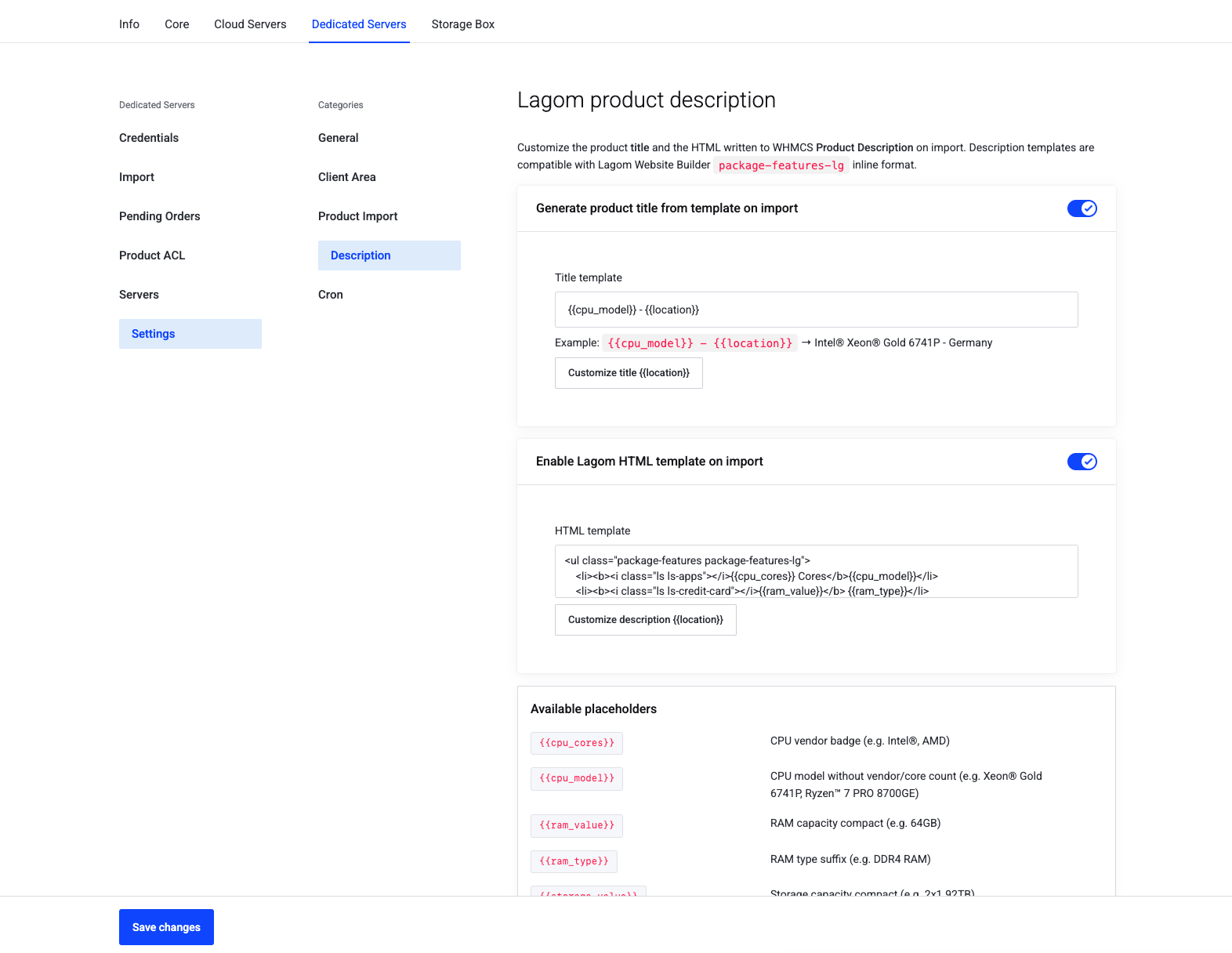
| Friendly name | System name | Type | Default |
|---|---|---|---|
| Generate product title from template | dedicated.title.template_enabled |
yes/no | No |
| Title template | dedicated.title.template |
text | {{cpu_model}} - {{location}} |
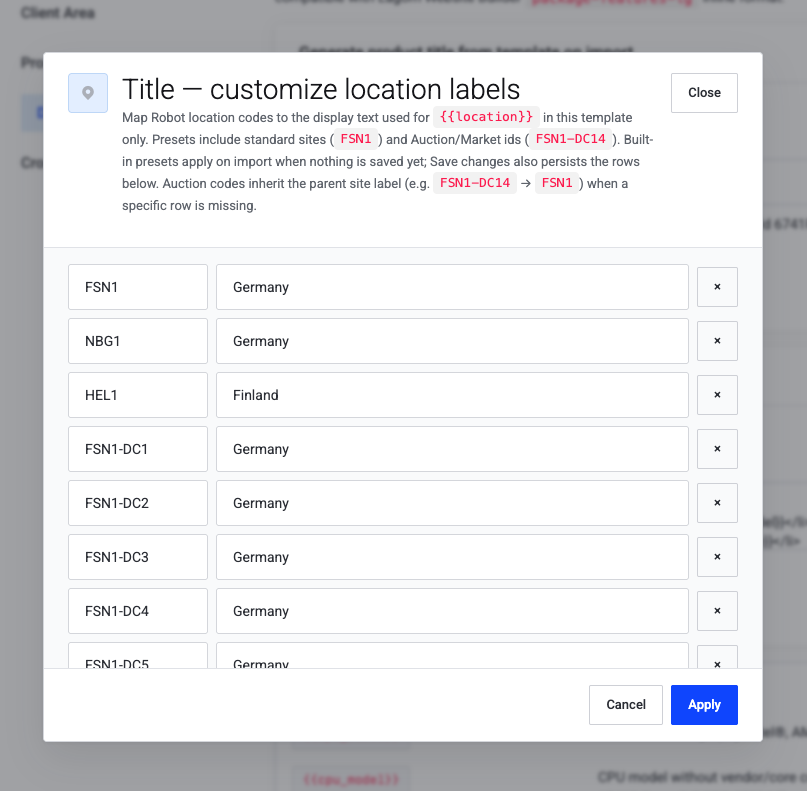
| Title location labels | dedicated.title.location_labels |
JSON map | Built-in Robot/Auction presets when empty |
| Enable Lagom HTML template | dedicated.description.template_enabled |
yes/no | No |
| HTML template | dedicated.description.template_html |
HTML | Lagom package-features-lg default |
| Description location labels | dedicated.description.location_labels |
JSON map | Built-in presets when empty |
Use Customize title {{location}} / Customize description {{location}} to map Robot codes (NBG1, FSN1-DC14, …) to display labels. Title and description keep separate maps. Auction/Market codes inherit the parent site label (e.g. FSN1-DC14 → FSN1) when no exact row exists.
Tip
After changing templates or location labels, use Regenerate imported descriptions on the same tab to refresh existing srv_hetzner_dedicated products from the live Robot catalog.
Cron tab
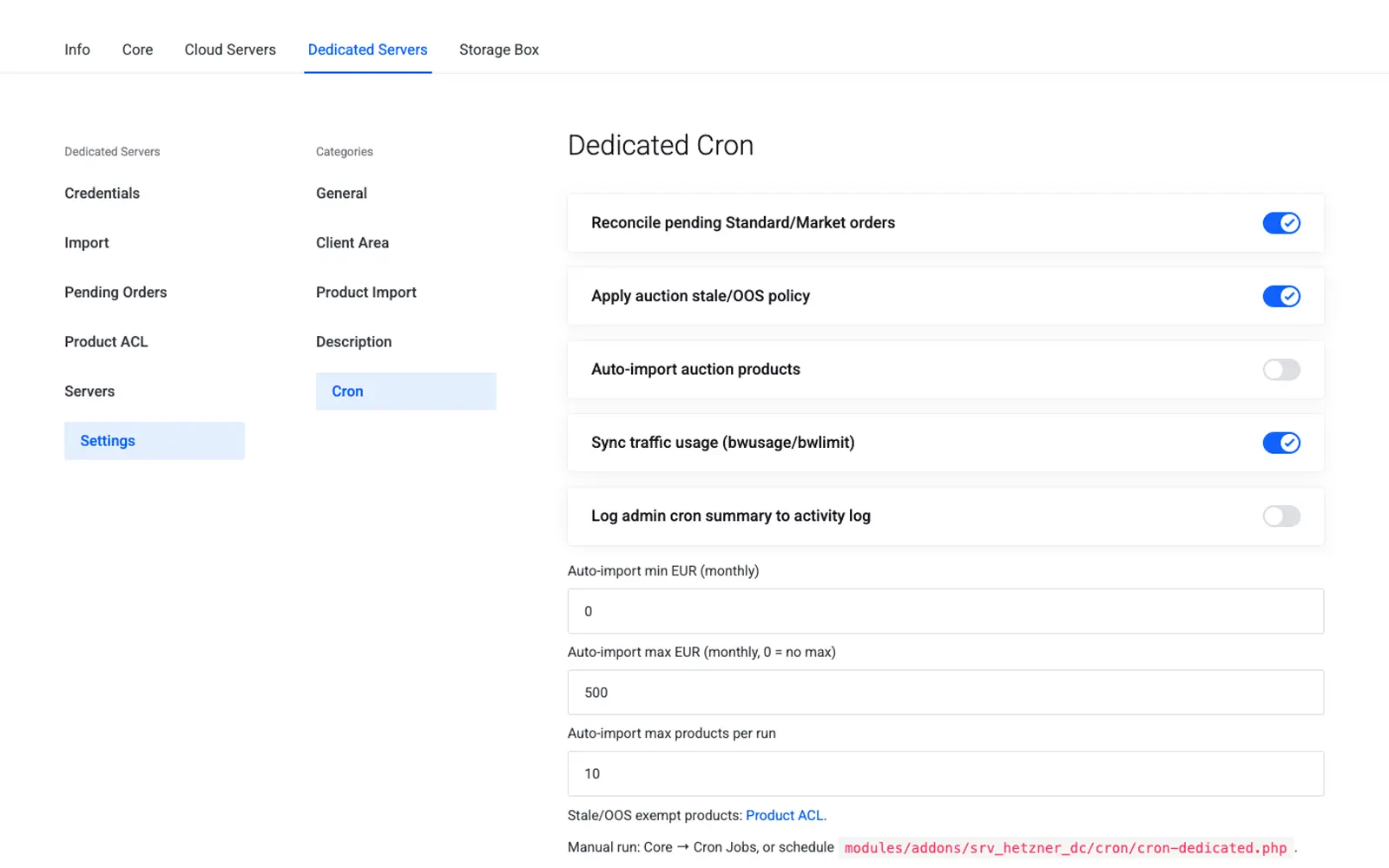
Family-level Dedicated cron toggles (order reconciliation, usage sync, auto-import bounds). Schedule the actual crontab lines from Core → Cron Jobs.
Tip
The Dedicated cron entry point can also be run manually from Pending Orders → Run Dedicated Cron for immediate reconciliation. See Pending Orders.
Troubleshooting
| Problem | Fix |
|---|---|
| Imports land in the wrong product group | Check Standard product group / Auction product group on the Product Import tab |
| Auction listings vanish without warning | Expected behavior — controlled by Auction stale policy |
| Client cannot see rescue mode button | Enable Allow rescue mode on the Client Area tab |
| Import columns missing from the catalog table | Re-check the desired columns; the import screen reads the saved JSON on the next catalog fetch |
Imported product name still shows NBG1 |
Enable the title template, ensure {{location}} is in the template, Save Description settings (presets apply when the map is empty), then re-import or regenerate |
Next step
Continue to Import Standard and Auction Products to build your product catalog.