
Guide
Import Server Types
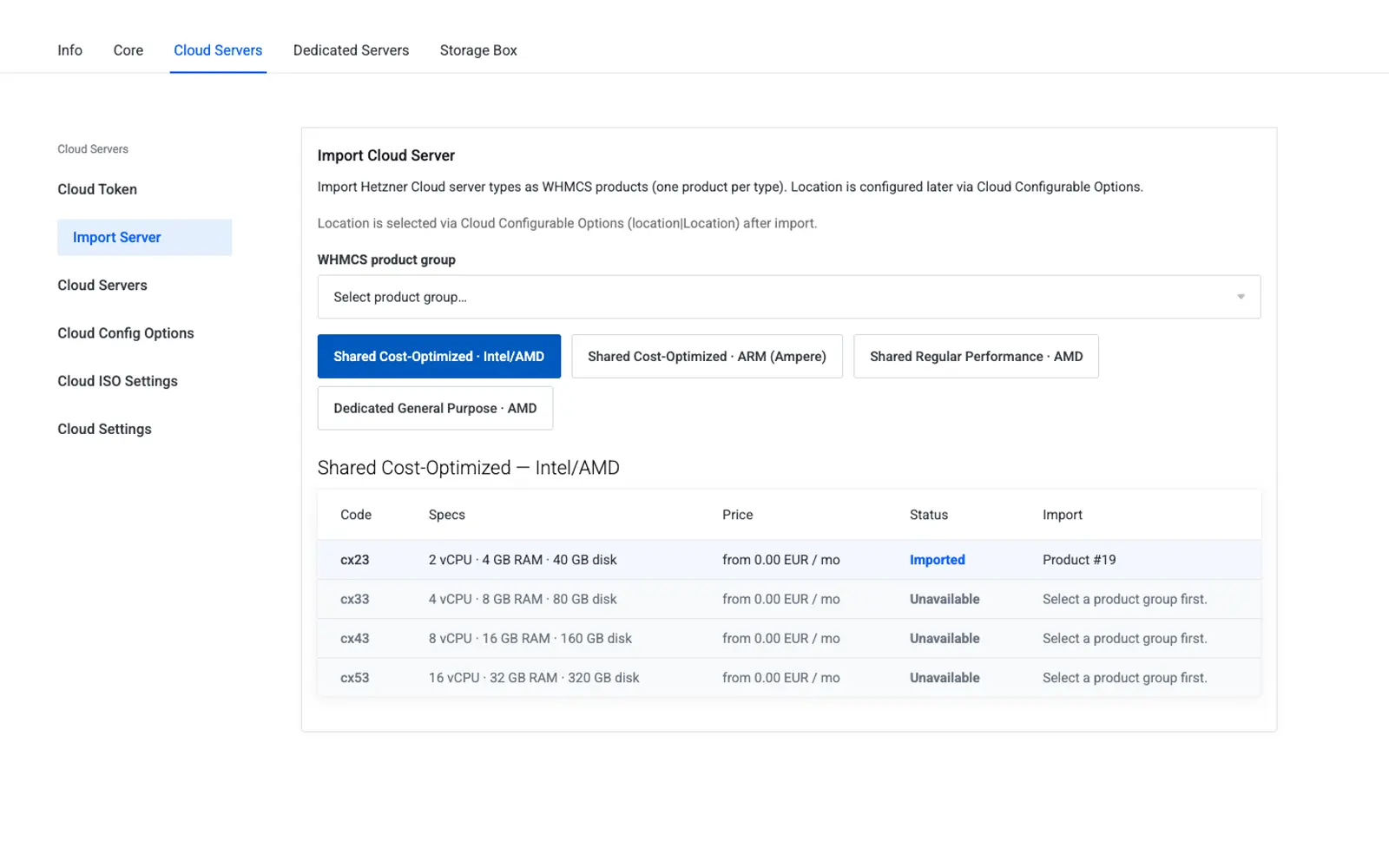
This page explains how to turn live Hetzner Cloud server types into sellable WHMCS products using the Import Server tool. It is written for WHMCS administrators building or expanding a Cloud product catalog.
Menu: Addons → Hetzner Data Center Core → Cloud → Import Server
Note
Configure the Cloud API Token before using this page — the catalog is fetched live from the Hetzner Cloud API.
Purpose
Import Server creates one WHMCS product per Hetzner server type (for example cx23, cpx22, cax21) from the live catalog. Location is not fixed at import time — customers choose a location later via Configurable Options.
Page layout
| Section | Description |
|---|---|
| Product group | Dropdown — the WHMCS product group new products are created in |
| Category tabs | Hetzner's own taxonomy: Cost-Optimized, Regular Performance (Intel/AMD), General Purpose, and so on |
| Architecture filter | x86 and ARM server types shown in separate sections |
| Table columns | Code, specs (vCPU/RAM/disk), a sample location, monthly price, and an Import button |
Row colors
| Style | Meaning |
|---|---|
| Green tint | Server type available in at least one location |
| Grey | Currently unavailable everywhere |
| Blue tint | Already imported (a WHMCS product exists for this type) |
Import workflow
- Select a Product group.
- Find the server type in the relevant category table.
- Click Import on the row.
- The module creates a WHMCS product with:
- Module set to Hetzner Cloud.
- The server type preset in module settings.
- Import metadata stored for cron and stock sync.
- Open Configurable Options and generate a Hetzner Locations — {type} group for the new product.
Tip
Import all the server types you plan to sell first, then batch-generate Configurable Options groups for all of them at once.
Deprecated types
Legacy Gen1 shared types (older CPX cpx*1 and Gen1 CX cx*2 patterns) are hidden from this catalog. Only current, orderable Gen2 types appear, matching what is available in the Hetzner Cloud Console.
Settings keys (reference)
Import stores server-type metadata per product. Operators rarely need to edit these manually.
| Friendly name | System name | Type | Default |
|---|---|---|---|
| Imported types index | cloud.import.products.index |
list | — |
| Per-product import payload | cloud.import.product_meta.{id} |
JSON | — |
| Per-product import markup | cloud.import_markup_percent |
percent | 0 |
Troubleshooting
| Problem | Fix |
|---|---|
| Page shows a token error | Configure the Cloud API Token |
| Product group dropdown is empty | Create a product group in WHMCS first (Setup → Products/Services → Products/Services) |
| Import button is disabled | The row is unavailable everywhere, or already imported |